
Customize
Customize decides what Keel shows – for every user. Open it under Setup → Settings → Customize in Keel's menu; only admins see it. Changes are saved in the database (per environment) and need no developer.
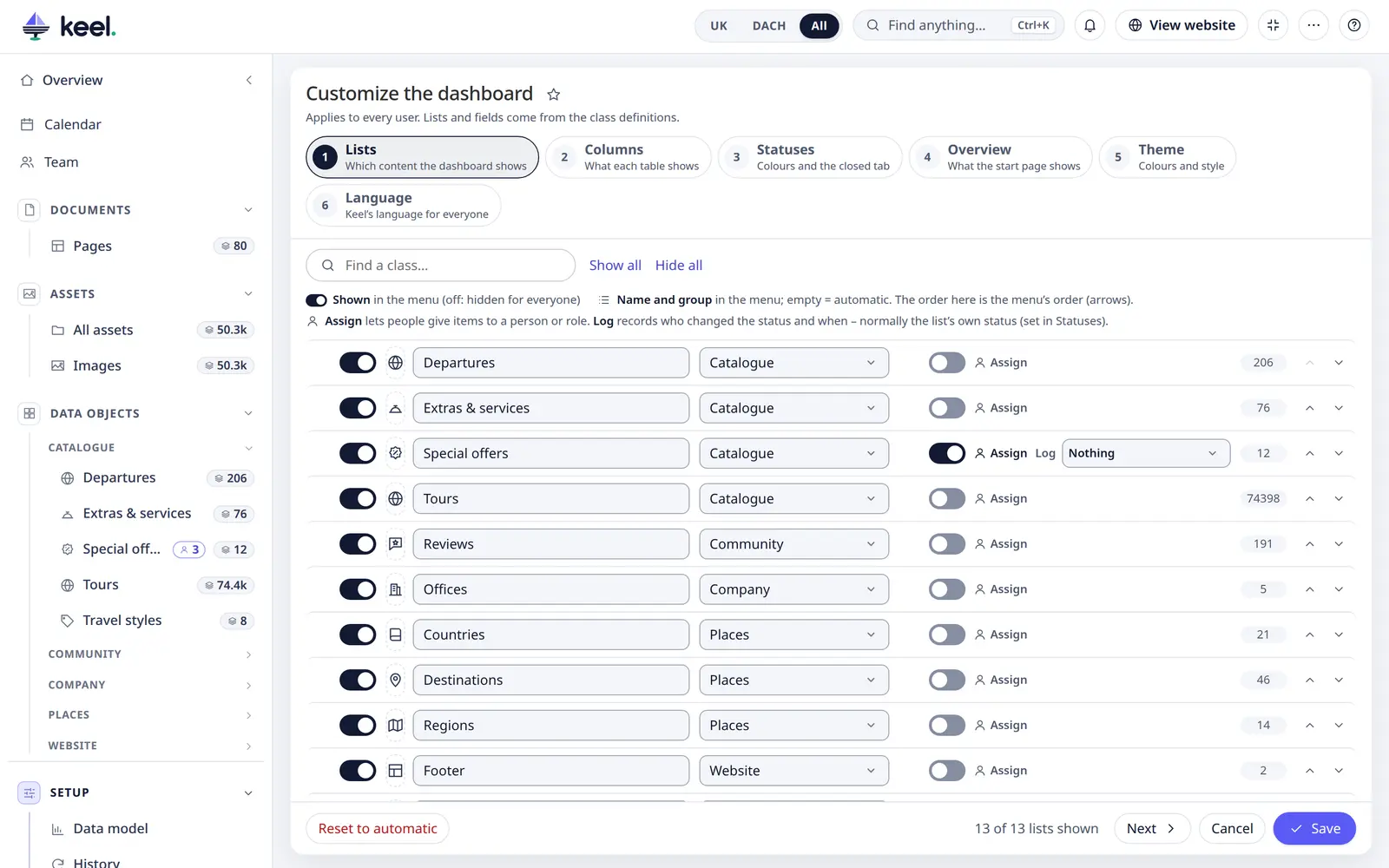
Customize has six steps – Lists, Columns, Statuses, Overview, Theme and Language; move between them with the step buttons or Back / Next. While you work, the dashboard previews your changes; Cancel throws them away and Save keeps them.
1 · Lists
Which content the dashboard shows.
- The switch shows or hides a list. Show all / Hide all switch every list.
- Icon – pick one, or Automatic from the class. The icons come in sections by kind of business (real estate, travel, shop, food, health, education, cars, finance, industry, tech, media, sport, nature, public) with a search. They are Keel's own and Lucide icons (ISC licence, free for commercial use).
- Name in the menu – empty means automatic (the class title from Pimcore).
- Group – a dropdown with every group in use, plus Automatic (the group from Pimcore). Choose New group… to type a new name; it then appears in the dropdown of every list.
- The arrows set the order – the order here is the order in the menu.
- The person switch turns assignments on or off for the list's class, and the field next to it picks the status field whose changes are logged (or No status log). Lists of the same class switch together.
2 · Columns
What each table shows. The image, name, last change and status are always there; add as many columns as you
like, in the order you want (there is no limit unless the developer sets one with lists.max_columns). A preview of
the first rows shows the result.
Each list has its own columns. Until you choose them, a list is automatic: it shows 5 columns (or fewer, if the
developer set another number with lists.default_columns) – the name, the status, Assigned to, then the first
fields. The line above the checklist says Automatic or Chosen here; Back to automatic undoes your choice.
Users can still show or hide columns for themselves with the Columns button above the list.
3 · Statuses
The status field of each list: its coloured status labels, the status chips and the Open / Closed tabs editors see (how lists show statuses). Pick a list on the left.
- Status field – Automatic (the status field of the class's assignments, else a select field named status, else none), None (no status labels, chips or tabs in this list), or any select field of the class. Choosing another field starts its colours and closed statuses from the automatic defaults.
- Colour – per status, pick a swatch – the row of preset colours runs from red through orange and yellow to green and blue, then slate and grey – or your own colour (the multicoloured circle, which opens a colour picker). Each status is previewed as it will look in the light and the dark theme; hover a preview to see its contrast. Keel adjusts the text colour, so even a very bright colour (yellow) stays readable (at least 4.5:1).
- Counts as closed – items with this status move out of the list's Open tab into a second tab. With one closed status the tab carries its name (Done), with several it is called Closed; with none the list has no tabs. The line above the statuses shows which tabs the list will have. If every status counts as closed, the Open tab only holds items without a status – the list then opens on the closed tab. A status that comes from a workflow has no tabs and no such switch: its places are one row of chips.
- When the status field is not one of the list's columns, a note says so: the rows show the coloured labels only when it is a column.
- Reset to automatic – this list's field, colours and closed statuses go back to the defaults.
The automatic colours follow the meaning of a status (in English, Croatian and German): new / novo / neu blue, in progress / u obradi / in Bearbeitung cyan, done / zatvoreno / erledigt and sold / rented grey, rejected / odbijeno / abgelehnt red, anything else a distinct colour in option order. The done and rejected groups count as closed. Only what you change is stored; the list shows your choice the next time it is opened. Saving also tidies up: choices for options or fields the class no longer has are removed, and choices made under Automatic stay with that field (if the automatic field changes later, the new one starts from its defaults). Choices for lists that are not offered at the moment (for example while their class is missing) are kept for when they come back.
The beta (Before Documents) has the same status colours (step 3) and the same status menu in its lists.
4 · Overview
What the start page shows:
| Card | Default |
|---|---|
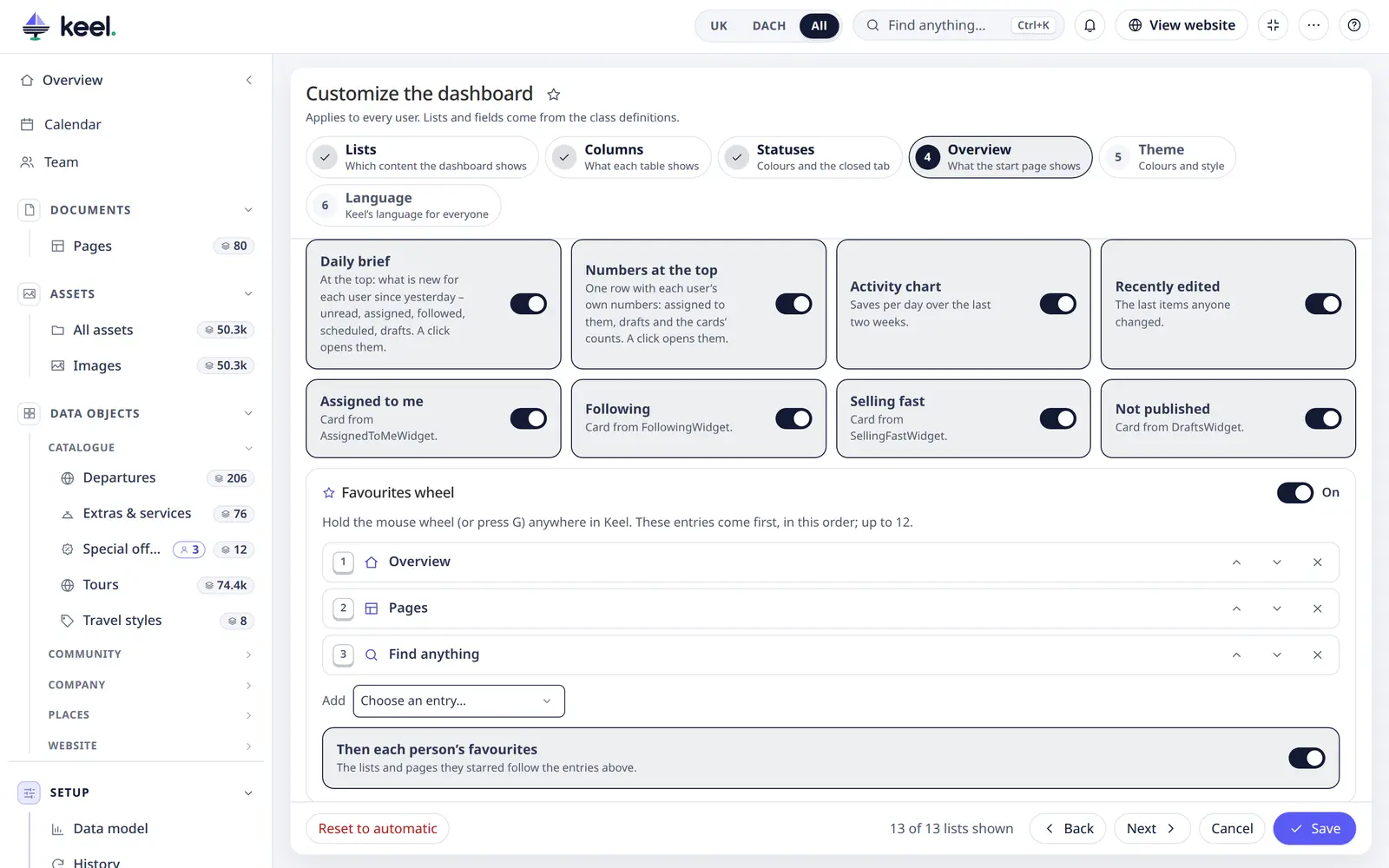
| Daily brief | on – what is new for each user since yesterday: unread, assigned, followed, scheduled, drafts, the team's saves. Each line opens those items. |
| Numbers at the top | off – one row with each user's own numbers: assigned to them, following, drafts and the cards' counts. A click opens them. |
| List tiles | off |
| Activity chart | on – while there is little activity it shows as a low strip instead of a card |
| Recently edited | on |
| Each project card, e.g. Not published, Assigned to me, Following | on – Following shows only for users who follow something |
Each user can hide cards you switched on for themselves in My view.
Favourites wheel
At the end of the Overview step. The switch turns the wheel on or off for everyone (off: the middle mouse button and G do what they do without Keel). Below it: the entries the favourites wheel shows first – Overview, Pages, Find anything, Calendar, Team, All assets or any list – in order (the arrows move them, × removes one), up to 12. Then each person's favourites adds what each person starred after them. Each person only sees the entries they can open.
5 · Theme
Colours and style:
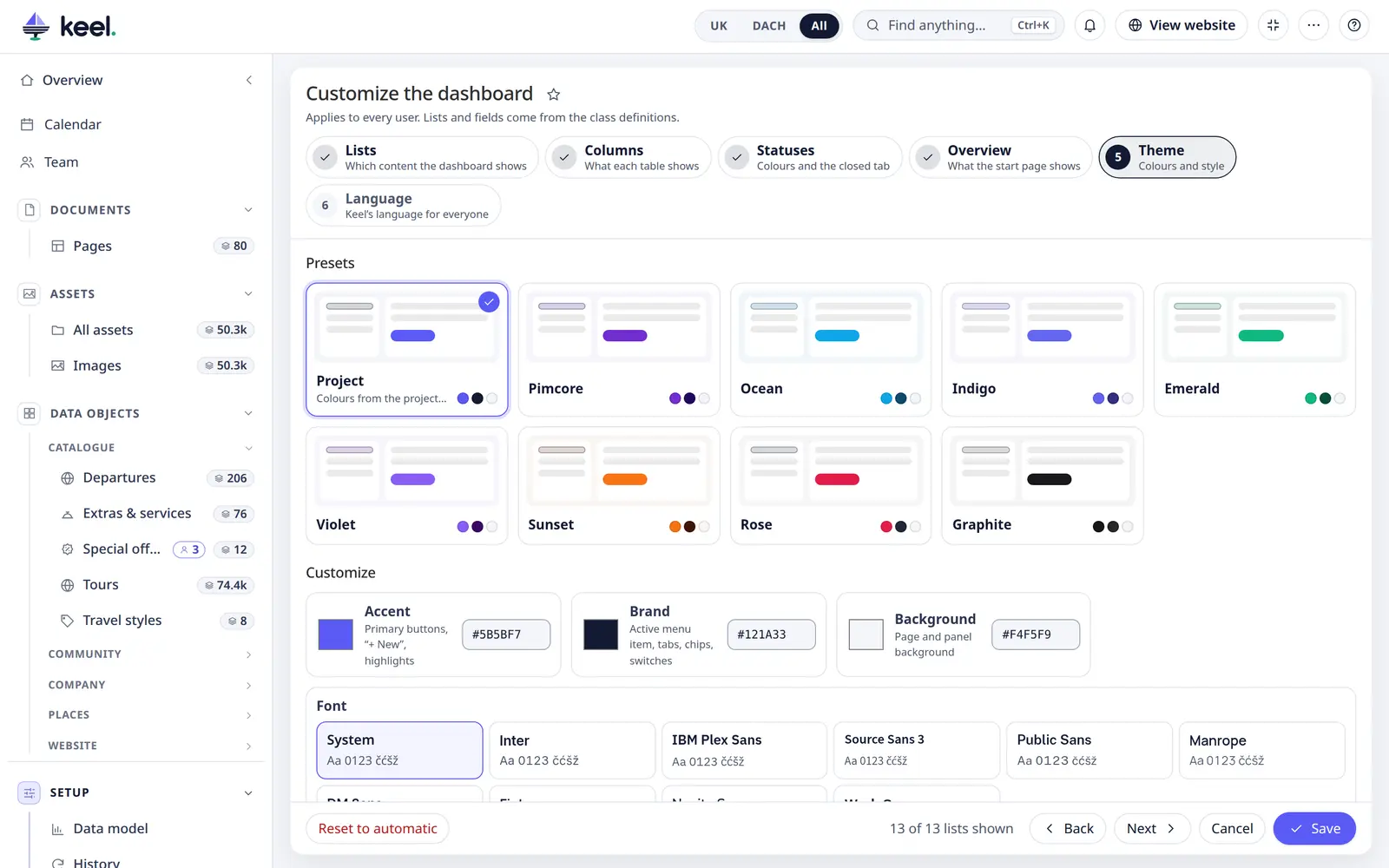
- Presets – Project (the colours from the project's configuration), Pimcore (Pimcore Studio's violet), Ocean, Indigo, Emerald, Violet, Sunset, Rose and Graphite.
- Customize – your own Accent (buttons, links), Brand (selections, active menu entry) and Background.
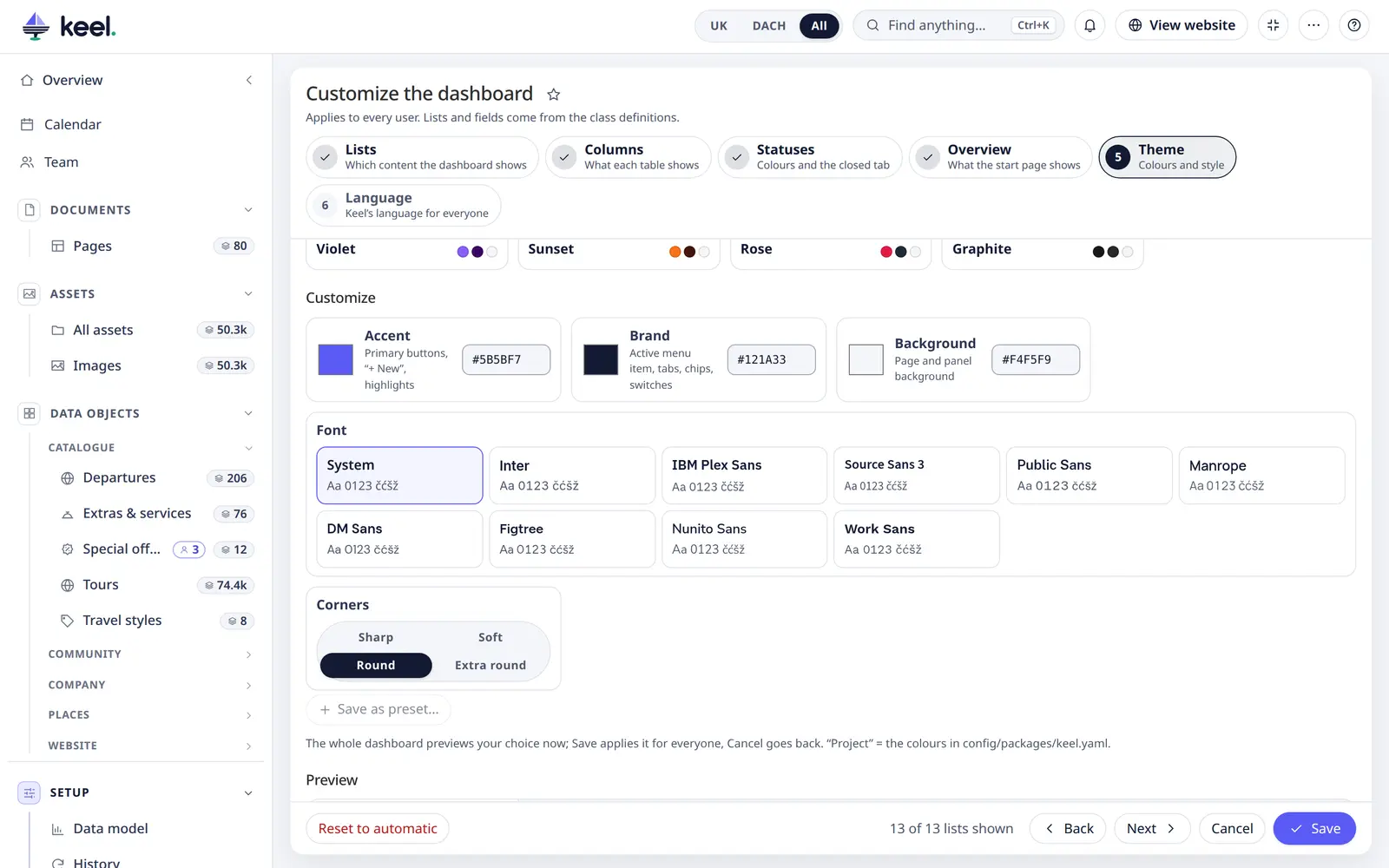
- Font – System (the computer's own interface font) or one of nine fonts made for screens: Inter, IBM Plex Sans, Source Sans 3, Public Sans, Manrope, DM Sans, Figtree, Nunito Sans and Work Sans. Each is shown in its own typeface. All are free (SIL Open Font License), ship inside Keel and load from your own server – never from Google – and only the chosen one is downloaded.
- Corners – Sharp, Soft, Round or Extra round.
- Save as preset… – keeps your own look under a name, next to the built-in presets, for every admin. Up to 20 saved presets; the × on one removes it.
Dark mode follows the theme automatically.
6 · Language
Keel's interface language for everyone. Content is not touched: it stays in the languages it is written in.
- Default for everyone – Each person's Pimcore language (what their Pimcore account is set to, else the first language below) or one of the languages: everyone starts in it until they pick their own in My view.
- Languages people can choose – English, Croatian and German, each with a switch. At least one stays on. If the default is switched off, it goes back to Each person's Pimcore language.
Nothing is stored until you change something here: until then languages in keel.yaml decides
(Interface languages). Once saved, this step wins over keel.yaml.
Customize and keel.yaml
The developer sets the starting point in config/packages/keel.yaml (where each setting lives).
What you choose here wins: a saved theme over the keel.yaml colours, your status choices for a list over the
keel.yaml status words and colours, your assignment switch over the keel.yaml classes, your language choice over
languages. Lists you have not changed
keep following keel.yaml. A keel.yaml status colour that is not one of the swatches shows as Own colour.
There is no limit on columns per list, unless the developer sets one (lists.max_columns).
Start over
Reset to automatic (bottom left) removes every customization: Keel goes back to one list per class with
automatic columns and status settings, the interface language follows keel.yaml again, and assignments go back to what config/packages/keel.yaml says. The
Reset to automatic inside the Statuses step only resets the list you are looking at.