
Filters and saved views
Search finds words. The Filter button finds items by what is in a field: tours under 1,000 €, enquiries from the last 7 days, properties without a photo. Save what you built as a view and it is one click away.
Filters work on every list, also on lists with tens of thousands of items.
Filter a list
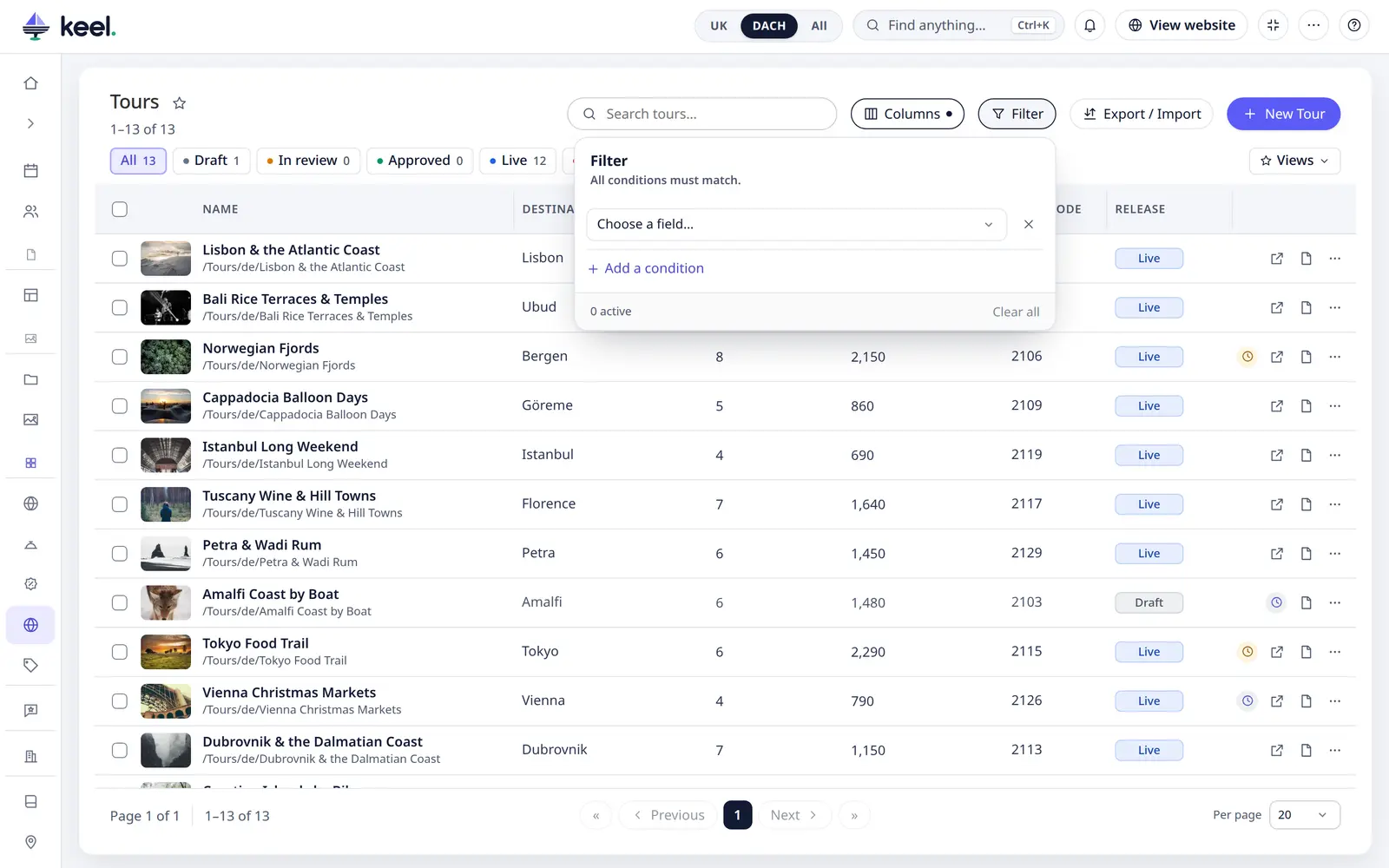
- Click Filter in the toolbar, next to Columns and Export.
- Choose a field, a condition and a value. The list follows as you type.
- Add a condition for more. All conditions must match.
The fields are the ones the list can show, plus a few that make no column (rich text, images), and Changed, Created, Publication, Key, Folder and ID.
| Field | Conditions |
|---|---|
| Text | contains, is, is empty, is not empty |
| Number | =, ≠, <, >, between, is empty, is not empty |
| Date and time | on, before, after, between, in the last … days, is empty, is not empty |
| Select, multiselect | is any of, is none of, is empty, is not empty |
| Checkbox | Yes, No |
| Linked items | is any of, is empty, is not empty |
| Image | is empty, is not empty |
| Assigned to | is any of, is empty, is not empty |
- Dates are whole days: before and after leave out the day itself, between includes both days. In the last 7 days is today and the 7 days before it.
- ≠, is none of and No also find items with nothing in the field.
- Linked items use the search you know from the editor: the newest come first, typing searches all of them.
- Translated fields are read in the language of the market chosen in the header, so the field's name shows it, for example Name (EN). Without a market, the default language counts.
With completeness rules on, you can also filter by Completeness and Missing field.
On a class with variants the panel also offers Variants, see Variants and inherited values. Values inherited from a parent count like the item's own.
Active filters
Each filter shows as a chip under the toolbar, and the button shows how many are active. The × on a chip removes that filter. Clear all removes them all: under the toolbar when there are two or more, and always in the panel.
Filters work together with everything else on the list: search, the chips, status tabs, sorting and pages. Lists with a status field (with or without a workflow) have no Published and Drafts chips: filter by the field Publication there. The numbers on the chips follow the filter. Select all matching, bulk changes and Export take exactly the filtered rows.
You only find what you may see: items outside your workspaces stay out, also by a filter on a field or an ID.
Saved views
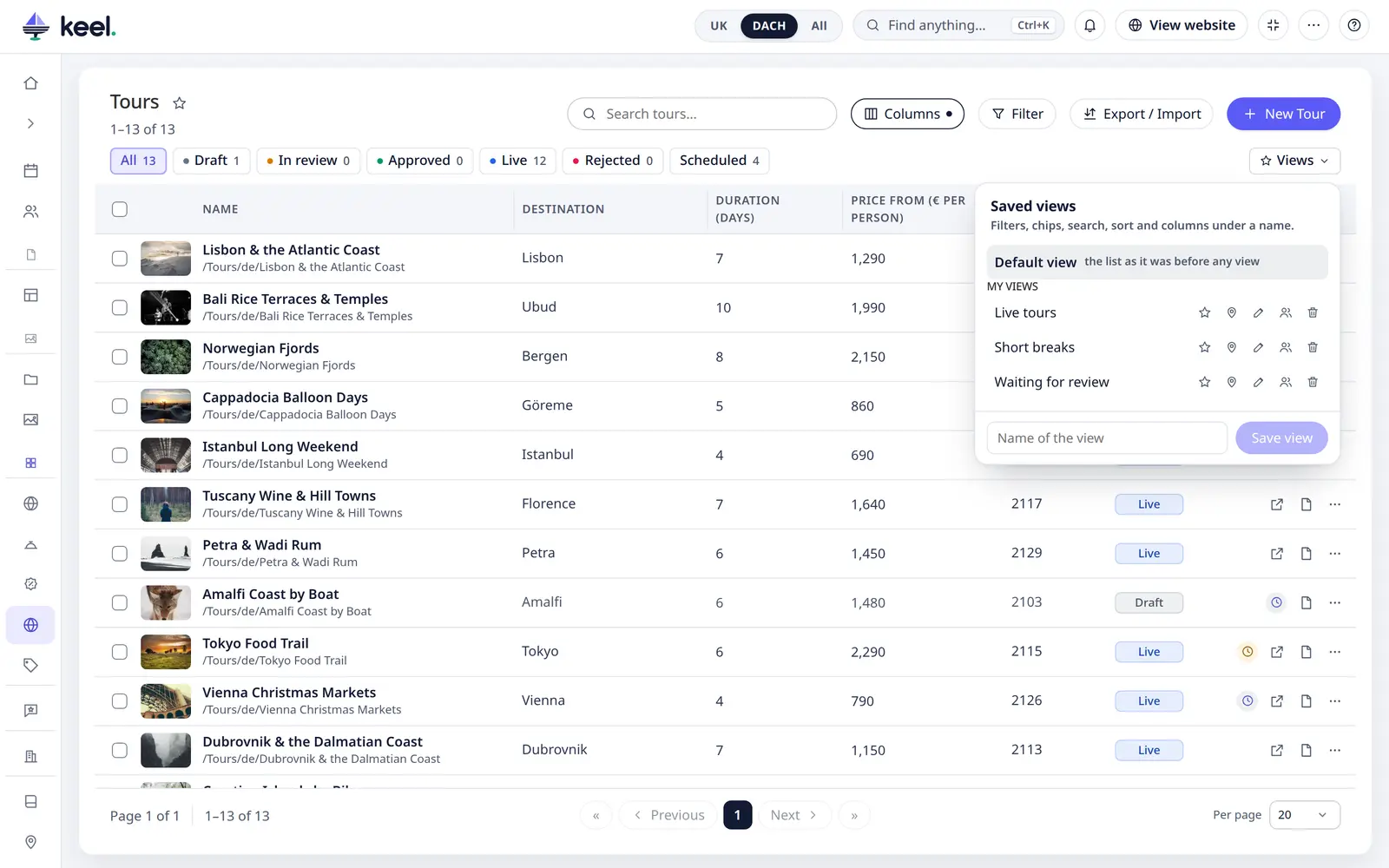
A view remembers the filters, the chips and tab, the search, the sort and the visible columns under a name.
- Set up the list.
- Click Views, type a name and click Save view.
Only you see it. Open it from the Views menu. While a view is on, the button says View: name; its × – or Default view in the menu – goes back to the list as it was before.
When you change a list that shows a view, a * appears next to its name and Update view stores the change. Columns
you change while a view is open belong to that view, not to your own columns of the list.
In the menu, next to each view:
| Button | What it does |
|---|---|
| Star | Adds the view to your favourites in the menu |
| Pin | Open this list with this view: your default for this list. Click it again to stop |
| Pencil | Renames the view |
| People | Share with everyone (admins): adds a copy under Team views |
| Bin | Deletes the view. The items in it stay as they are |
A list can have 30 saved views of yours and 30 team views.
Team views
Admins share a view with everyone from the same menu. Team views are listed under Team views. Anyone can open them, star them or make them their default; only admins can update, rename or delete them.
What a team view shows still depends on who opens it: each person sees only the items they may see.
When a field is gone
If a field a view filters on was deleted from the class, or you may not use it, that condition is left out and a small note under the toolbar names it. The other conditions still apply. Update the view to store it without that condition.
An export never leaves out such a condition: it stops with a message instead of giving you more rows than the list shows.