
Pages: content editor
Edit content in a page's settings opens the page itself – the real website page – ready to edit.
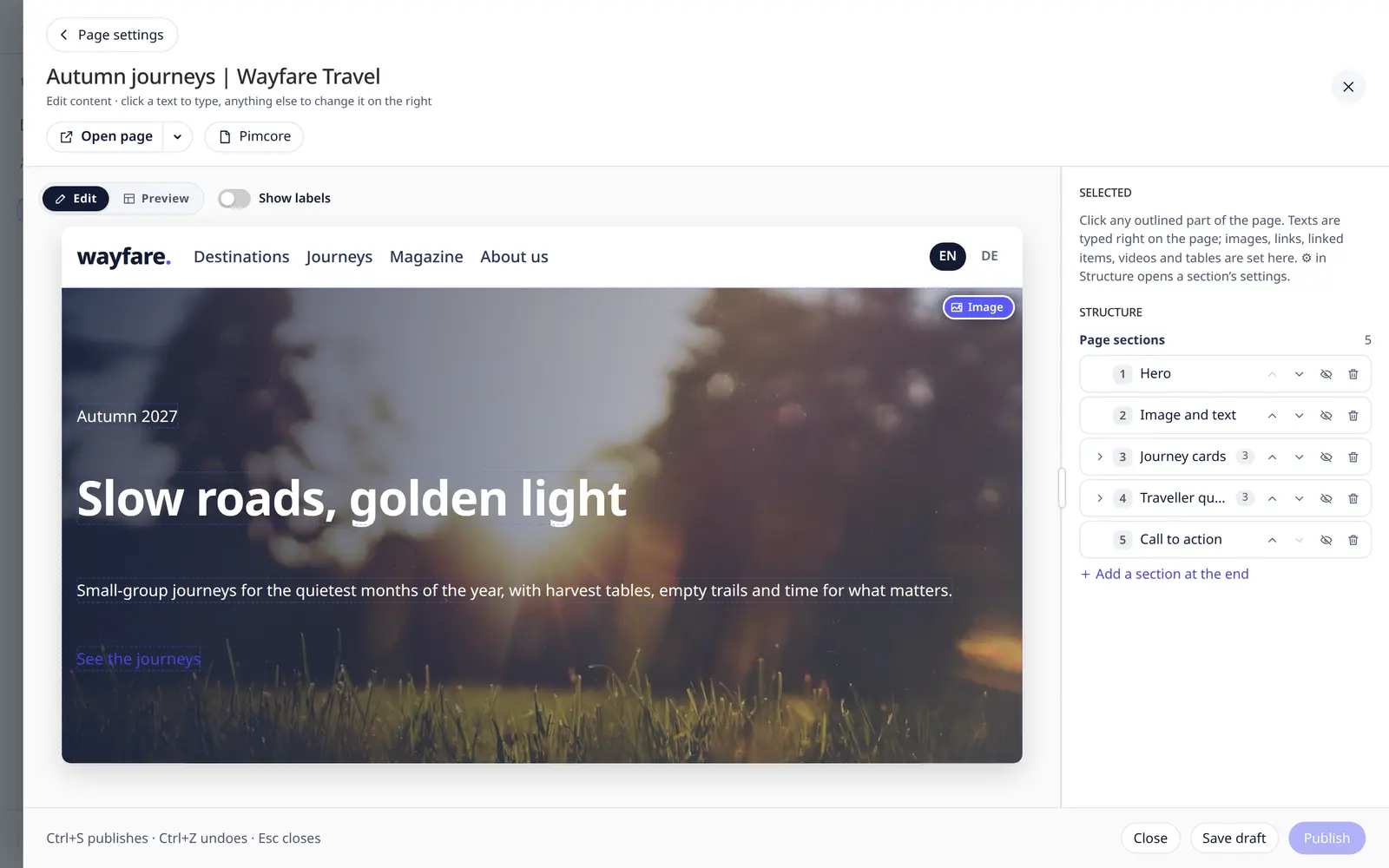
Edit on the page
- Texts – click and type, right on the page. Rich text gets Pimcore's toolbar right above it – see Rich text.
- Everything else – images, links, linked items, videos, tables, choices – click it; its settings open on the right.
- Editable parts are outlined; parts you changed are outlined in orange. Parts Keel cannot edit are marked Edit in Pimcore.
- Images always carry a small Image marker in their corner (only the icon on small images), so you can tell them apart from the page's decoration without clicking. Their buttons show on hover – see Images.
- Choices are a dropdown right on the page.
- Links, videos, linked items, choices, yes / no, dates, numbers and tables show a small label with what they are and an Edit button when the mouse is on them. Edit opens their settings on the right.
- Keyboard: Tab reaches images and these parts like any field. On an image Enter shows its buttons (← → move, Esc closes); on the others it opens their settings.
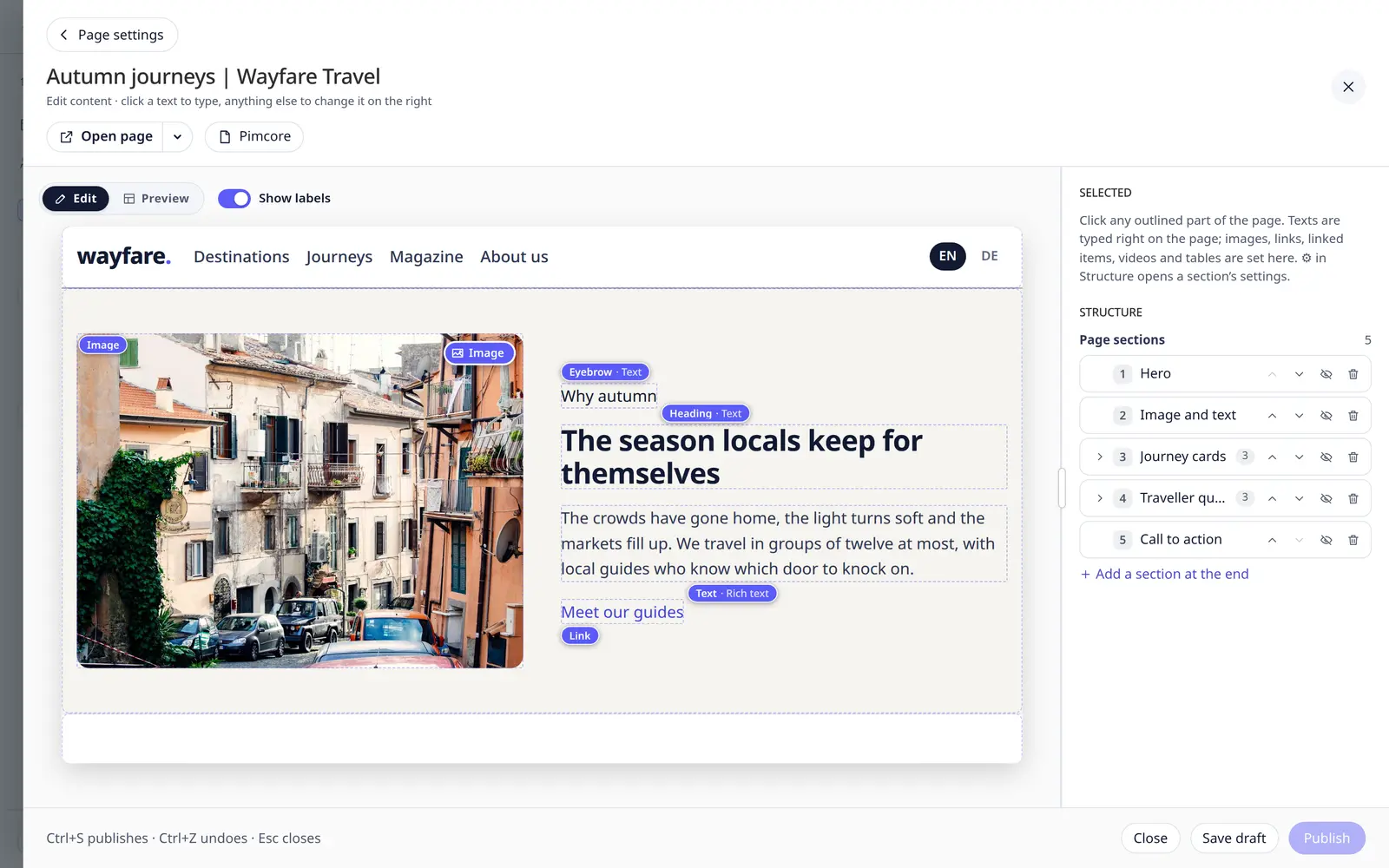
- Which field is which: every text shows a small label when the mouse is on it or you are typing in it – its name
and kind, e.g. Headline · Text, Intro · Plain text, Body · Rich text. The name is the field's title from the
template, else its placeholder, else its name made readable (
t_input→ T input). A label never covers its own field: it sits just above it (below or to the right when there is no room). On rich text it goes to the side away from the toolbar; the toolbar itself takes the side that hides less of the other fields. The hover label of links, tables, linked items and the like names the field too (Price table · Table). - Show labels (the switch next to Edit / Preview, or Alt L) shows the label of every field on the page at once – texts, images and everything else – so you can scan the page. Labels never move the page and never cover each other or a field's text: where fields sit close together (cards, block entries) a label moves along to the right, goes below or next to its field, or is shortened with "…" (hover the field for its own label in full). While a rich text's toolbar is out, a field it covers shows no label. Keel remembers the switch for you, on any browser (it is part of My view); it starts off.
- If you may only view a page, it shows as it is, with outlines but no buttons; the labels show as well (on hover and with Show labels).
Changes show immediately – only the section you changed is redrawn, so the page does not jump.
Rich text
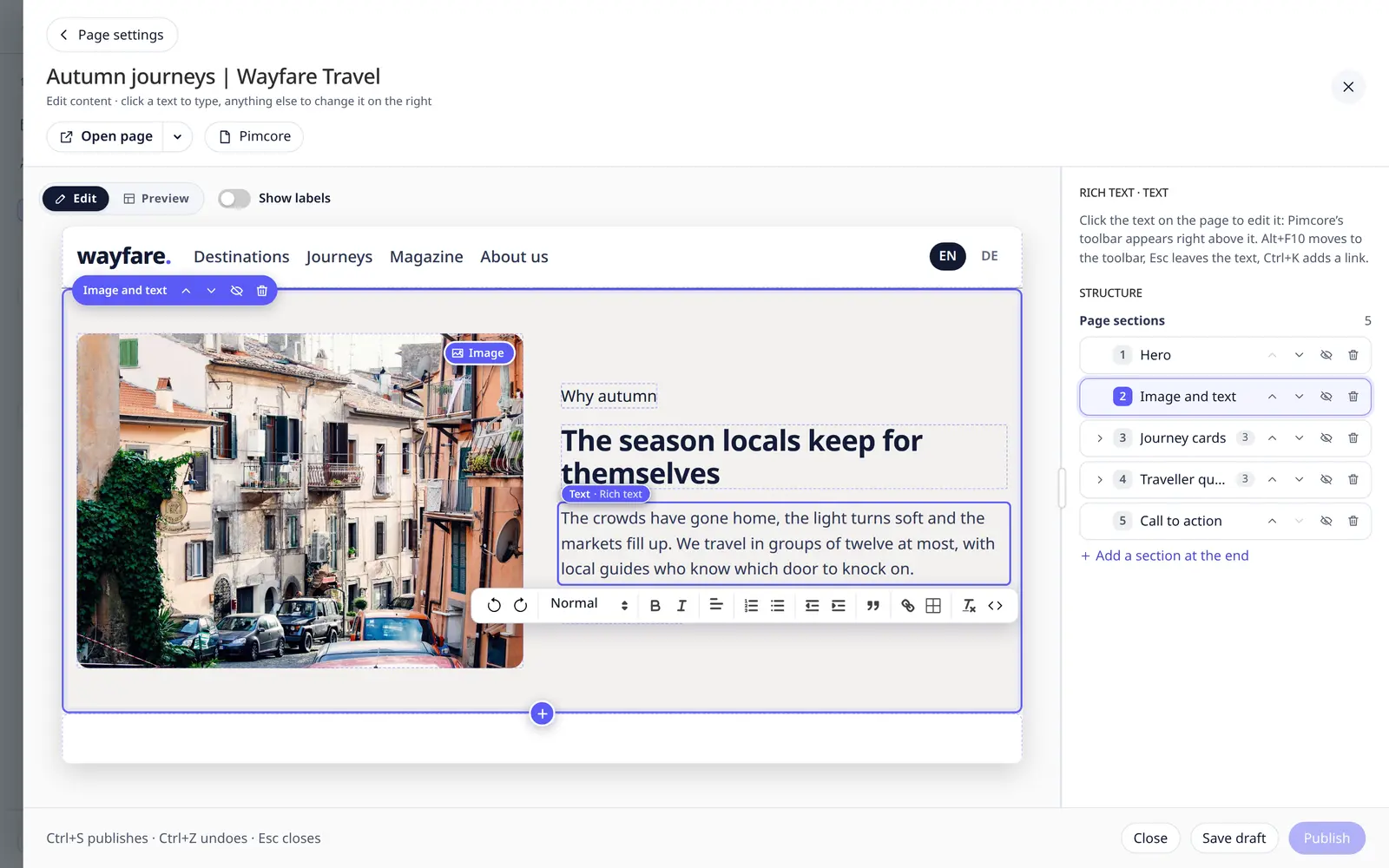
Rich text is edited with Pimcore's own editor (Quill, the one Pimcore Studio uses), right on the page:
- Click the text (or reach it with Tab) – Pimcore's toolbar appears right above it. In a long text it stays at the top of the page while you scroll; it never leaves the page frame. The text keeps the website's look while you type.
- The toolbar is the one Pimcore shows for that field: the field's own options in the template (its toolbar,
allowed formats, maximum length, placeholder) and the site's settings for rich text
(
pimcore_studio_ui.wysiwyg.defaultEditorConfig.document). Without either: undo / redo, headings, bold, italic, alignment, lists, indent, quote, link, table, clear formatting and HTML. - Links: the link button (or Ctrl K) asks for an address (
https://…,mailto:…,/page), or Link to a page or file of the site… opens Keel's picker. Such a link follows the page or file when it is moved or renamed, as in Pimcore. With nothing selected, the link goes in with its own text. - Paste from Word or Google Docs: the editor keeps what Pimcore keeps (headings, bold, lists, links…).
- Undo: Ctrl Z inside the text is the editor's own undo; outside it, Keel's undo puts the whole field back, as for any other change.
- Keyboard: Alt F10 moves to the toolbar (← → between buttons, Esc back to the text); Esc in the text leaves it, then Tab goes on.
- Saved exactly as Pimcore saves it: the same HTML as editing the same text in Pimcore Studio. A text you only open, or change and change back, is not saved at all.
- If you may only view the page, rich text shows as on the website, without toolbar.
For developers
Keel loads Pimcore's editor (Quill 2.0.3 with quill-table-better, as pimcore/quill-bundle) from its own files only
when a text is first clicked; nothing comes from a CDN. A rich text in a section's settings (its dialog) gets the same
editor in the sidebar.
Images
Point at an image and its toolbar appears on it:
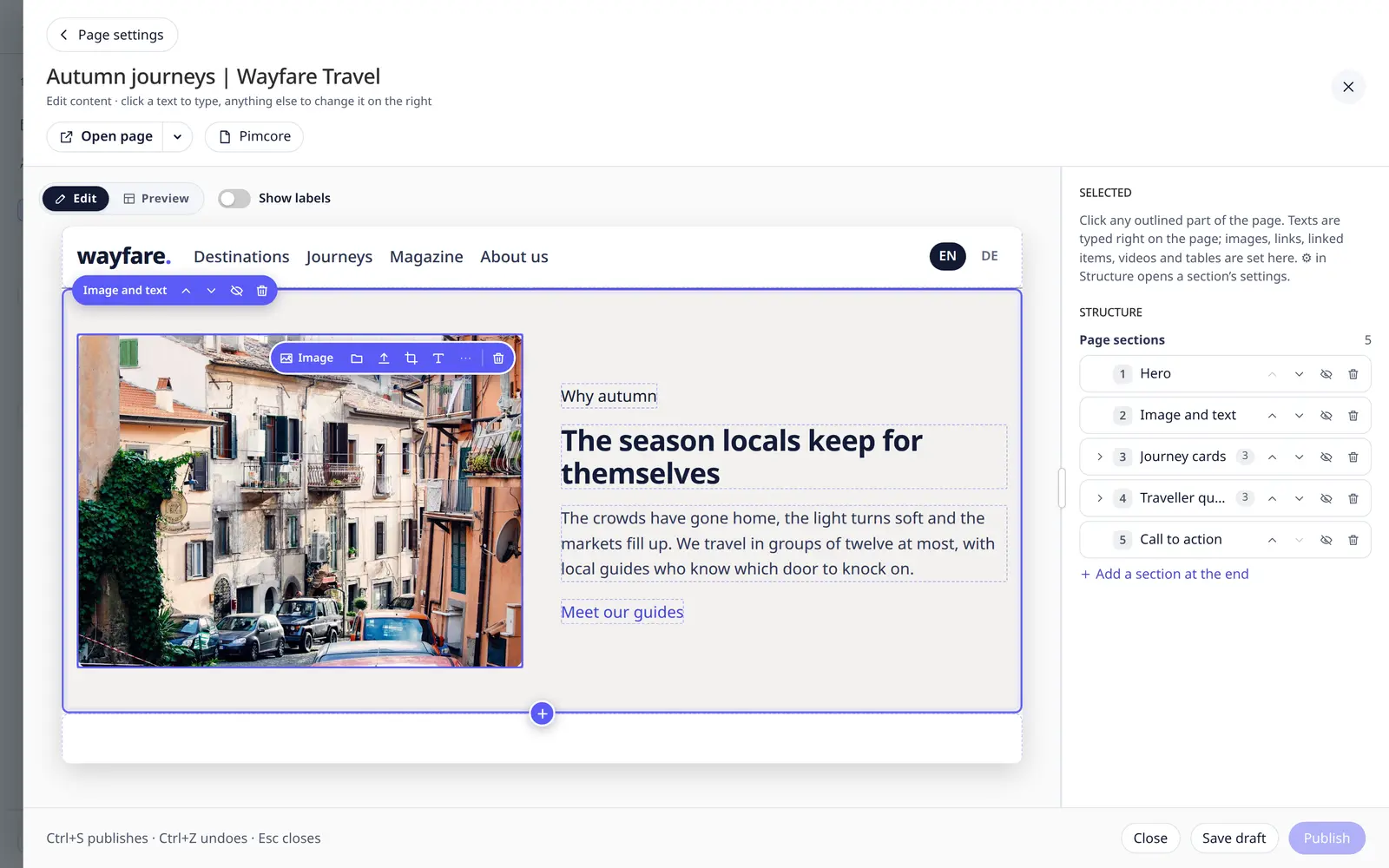
| Button | What it does |
|---|---|
| Choose… | Keel's image library (folders and search), the same as From library on the right |
| Upload | an image from your computer; it goes to the site's upload folder |
| Crop | opens the crop frame on the right |
| Alt text | jumps to the alt text on the right |
| … | Hotspots and Markers (on the right) |
| Remove image | empties the image field; the empty field shows at once and Ctrl Z brings the image back |
On small images the toolbar folds into one … button with the same choices in a menu. It never covers the whole image and never moves the page.
Empty images show a box of the image's size with Drop an image here, Choose… and Upload. Small empty images show an image icon and a + that opens Choose… / Upload.
Drag and drop: drop an image file from your computer onto an image on the page – it is uploaded to the site's upload folder and used. In Pimcore Studio you can also drag an image from the asset tree onto it. The image lights up while you drag over it.
Everything you do with these buttons is a change like any other: it is outlined in orange, can be undone, and is kept as a draft or published with the page. The settings on the right – Alt text, Crop, Hotspots, Markers – stay as they are.
Linked items
Add pages, files or objects with Add … – a picker with folders and search opens. Drag the rows to change the order. Removing a link (×) asks first; the page, file or object itself stays.
Sections
Hover over a section of the page for its toolbar: Move up, Move down, Hide on the page (kept), Section settings and Delete.
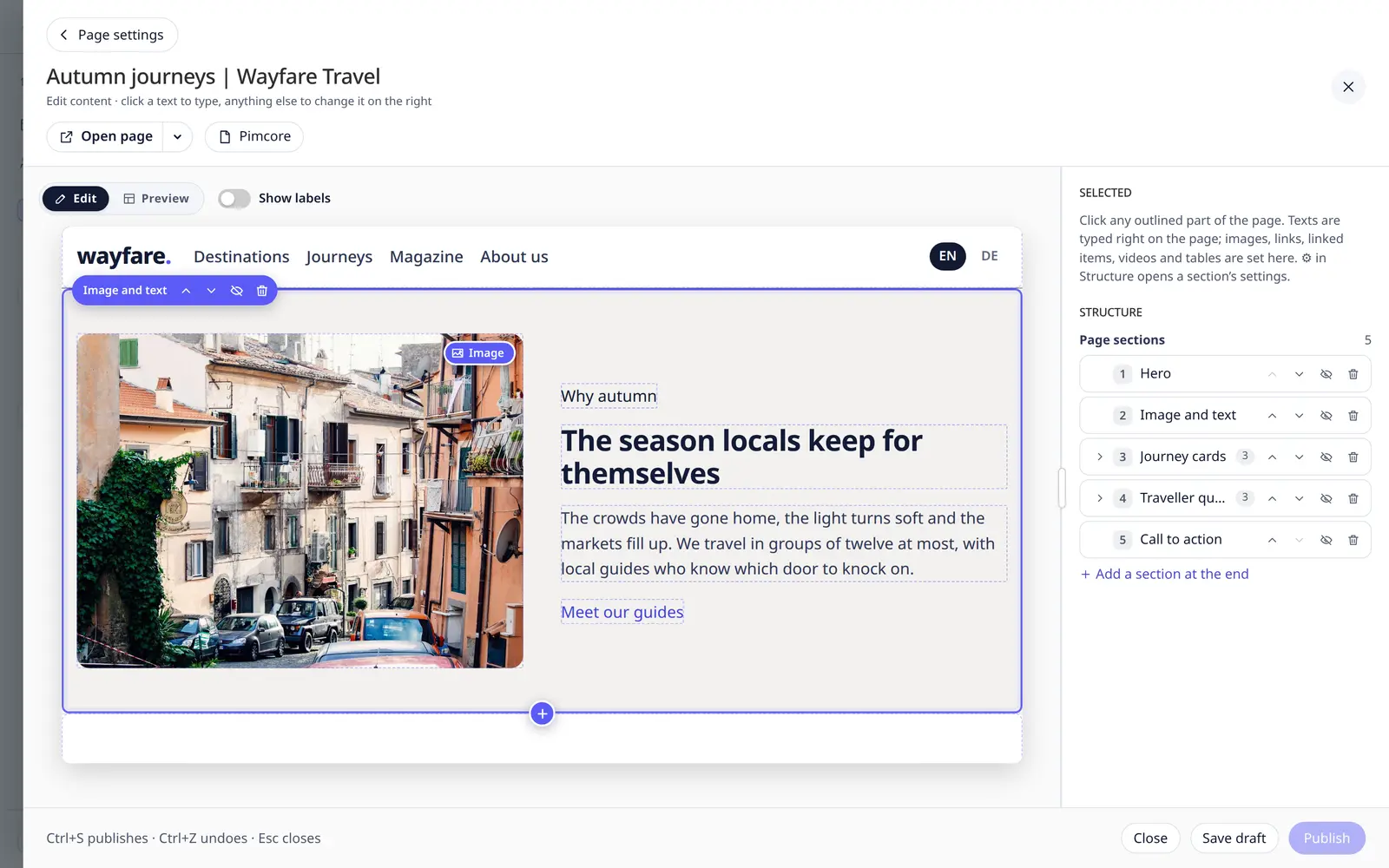
Add a section where you want it
Move the mouse to the edge between two sections – or above the first, or below the last – and a line with a round + appears. While you are on a section, the + on its bottom edge shows by itself, to add one below it. Click a + and pick a section: the new one goes in exactly there, the page scrolls to it and you can start typing. This works in every area of sections on the page, also in sections that hold sections of their own.
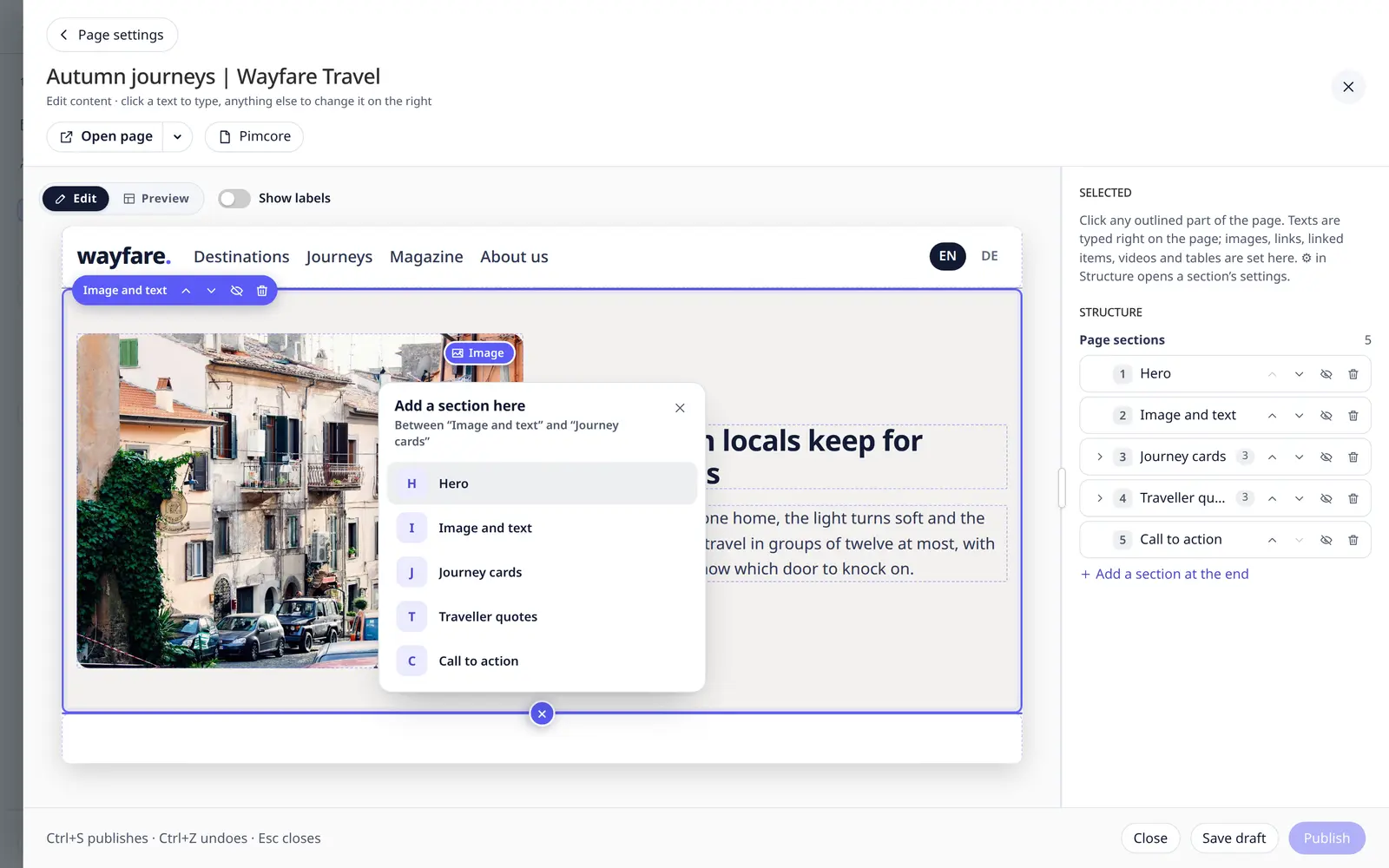
- The picker lists the sections this area allows, with their descriptions, in groups when the site defines them. With many, type to search.
- A section that may be used only so many times shows greyed, with the reason.
- When an area is full (the site allows at most so many sections there), its + is grey and its tooltip says why. Where nothing may be added, there is no +.
- Keyboard: Tab reaches the + right before and after a section's texts, Enter opens the picker, ↑ ↓ choose, Enter adds, Esc closes.
The sections after the new one keep everything: their texts, settings, Hidden and Shown from. Adding is a change like any other – Ctrl Z takes it back, and the website changes only when you publish.
Structure
On the right, Structure lists the page's sections. Click one to jump to it; Add a section at the end adds one after the last section of that area (use the + on the page for any other place). Some sections can be scheduled – Shown from a date.
If you may only view a page, the + and the section buttons are not shown.
Edit and preview
- Edit – the editing view.
- Preview – the page as visitors will see it, at Desktop, Tablet or Phone width or any device from the list, with touch simulation on small widths.
The page's own scripts do not run while you edit, so a slider or anything else a script draws can look static or empty there. Preview shows the page with its scripts.
Preview shows your changes before you save them – texts, rich text, images, links, choices, sections you added, moved, hid or deleted, section settings and block entries. While it does, the bar says Unsaved changes shown. Nothing is saved by looking: the website, the page's versions and any draft stay as they are, and only you see the preview. With no unsaved changes, Preview shows the saved page (or your draft).
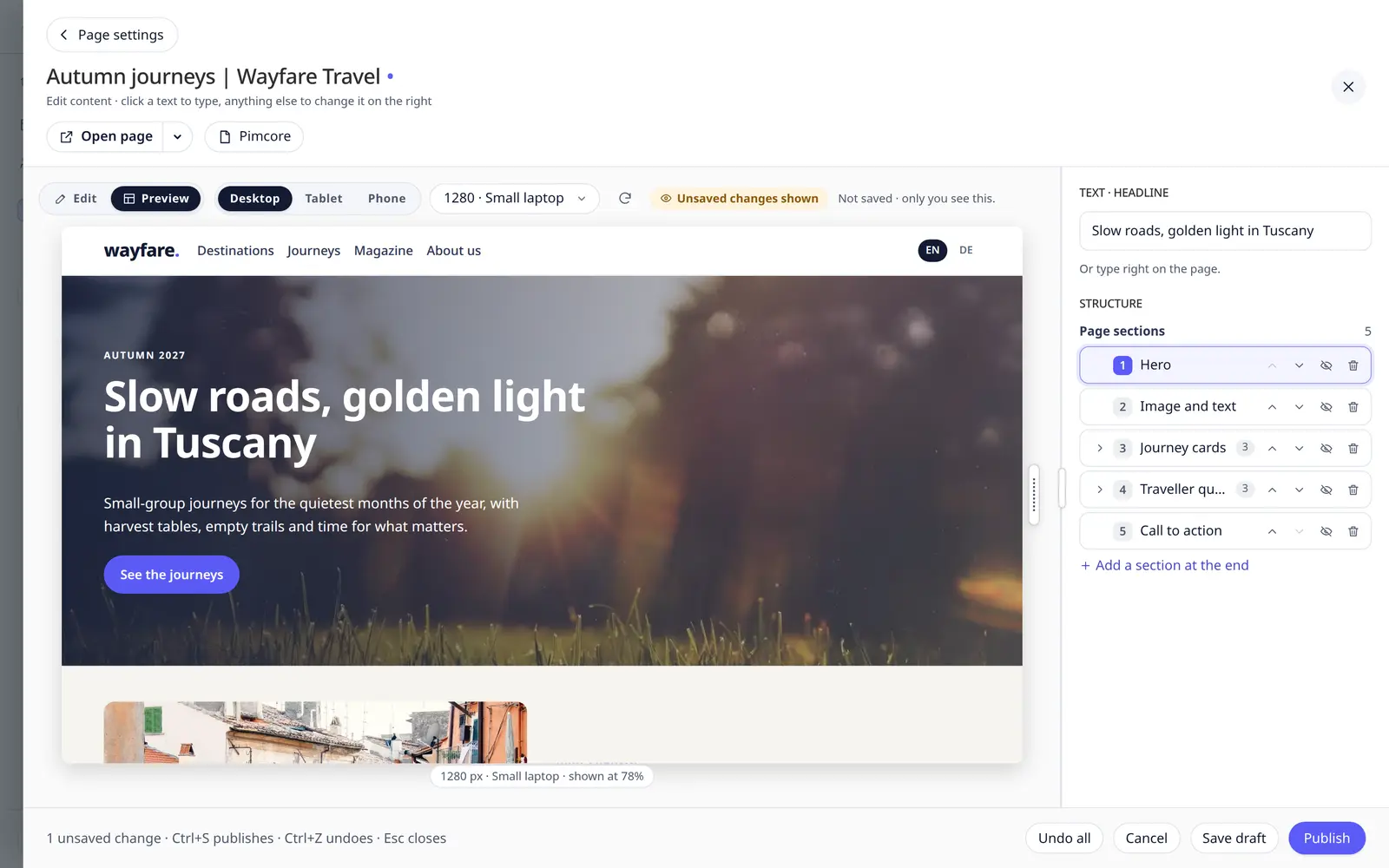
- Go back to Edit, change more, and return to Preview: it shows the new state. Returning without changes doesn't load anything new.
- Changes made in the sidebar while in Preview (section settings, Structure) show after a moment.
- The refresh button (⟳) next to the widths loads the preview again.
Open page opens the page as it is on the website (or your draft) in a new tab. Its small arrow ▾ also offers Open preview with my changes: the same preview in a new tab. That address works only for you, in this browser, for 15 minutes – sending it to someone else shows them an error, never your changes. Saving, Undo all or closing the editor ends it.
Draft or publish
| Button | |
|---|---|
| Save draft | Keeps your changes without changing the website. Ctrl Shift S |
| Publish (or Save for unpublished pages) | Puts the changes on the page. Ctrl S |
| Undo all | Throws away the changes since you opened the page |
When a page has a draft, Keel opens it with a note – You are editing a draft by Emma from 2 hours ago – and offers Discard draft. Editors who may not publish save drafts only.
Safe by design
Keel never saves a page that would lose content nobody deleted, and Pimcore's Versions keep every earlier state of the page.
Page settings at the top left takes you back; Open page opens the live page in a new tab (its ▾ also opens the preview with your changes).