
Scheduled publishing
Publish or unpublish an item – or a website page – at a set date and time – a sale that starts on Monday at 8:00, a seasonal offer that ends on 31 March, or new prices that go live on 1 December.
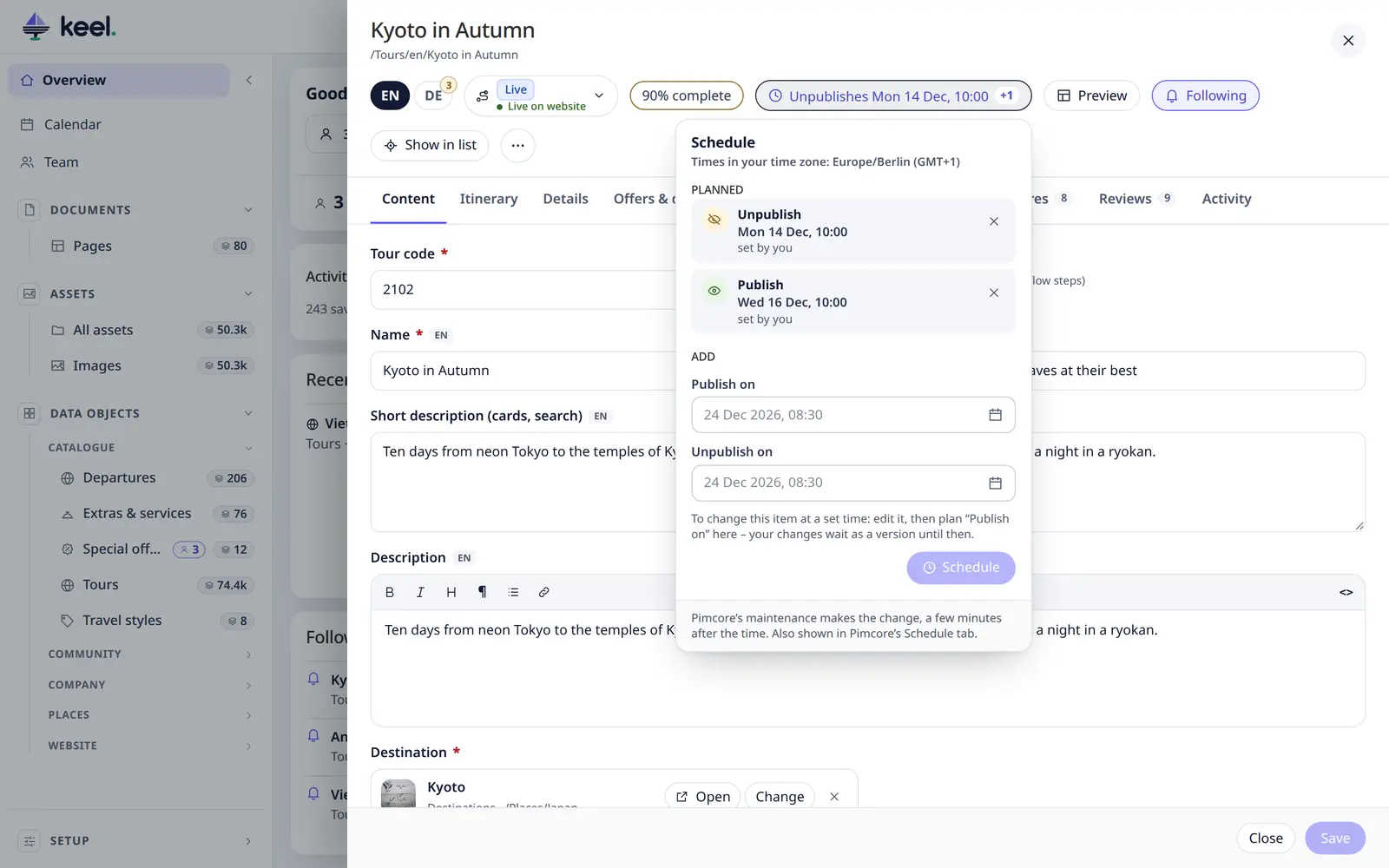
Plan a change
- Open the item, click ⋯ at the right of the editor's header, then Schedule….
- Fill in Publish on, Unpublish on, or both. Leave a field empty when you don't need it.
- Click Schedule.
A button next to Published now shows the next change, for example Unpublishes Thu 24 Dec, 07:00, and +1 when more are planned. Click it to open the panel again. While nothing is planned, there is no button: use ⋯ → Schedule….
Times are in your browser's time zone. The panel names it, for example Europe/Berlin (GMT+1). A colleague in another zone sees the same moment in their own time.
Both together make a seasonal pause: Unpublish on 1 December, Publish on 7 January.
Change a published item at a set time
Prepare the change now and let it go live later:
- Edit the fields as usual. Don't save.
- Click ⋯ → Schedule…, fill in Publish on, and keep Save my changes for later ticked.
- Click Schedule.
Keel saves your changes as a version. The live item stays as it is until the publish time. Then Pimcore puts the version live. The panel lists it as Publish saved changes, with the version's date.
While it waits, a note in the editor says Saved changes go live …. The form shows the live item. Saving the form changes the live item now, and at the publish time the saved version replaces it. To change the prepared version, cancel the schedule and plan it again.
If someone without the publish right already saved a newer version (see Editing an item), the panel offers to put that version live at the publish time.
With unsaved changes on an unpublished item, Save my changes first saves them before the schedule is set. Publishing then publishes the item as it is saved at that time.
See and cancel
- In the editor: the Planned list in the panel shows each change, its time and who set it. ✕ cancels it. A change whose time has passed shows Due – waits for Pimcore's next maintenance run.
- In lists: a small clock at the end of the row. Hover over it to see what happens and when; click it to open the item. The Scheduled quick filter shows only items with a planned change. It appears when at least one item in the list has one.
- In Pimcore: Keel uses Pimcore's own scheduled tasks. Changes planned in Keel appear in the Schedule tab of Pimcore Studio and the classic admin, and changes planned there appear in Keel. Changes planned in Pimcore can also be Delete tasks; Keel shows them and lets you cancel them with the delete right, but does not create them.
- In the calendar: Calendar in the menu shows every planned change of the month, pages and items together – see Content calendar.
- In History: Setup → History records each schedule you set or cancel, for example Scheduled Special offer "Fjord week" to be unpublished on 24 Dec 2026, 07:00. These entries have no Revert. Cancel the schedule in the editor instead.
Who can schedule
The same rights as the Published switch, on that item:
| To … | You need |
|---|---|
| Plan Publish on | the publish right |
| Plan Unpublish on | the unpublish right |
| Put saved changes live | the publish and versions rights |
| Cancel a change | the right its action needs (publish, unpublish or delete) |
Without either right, Schedule… is not in the ⋯ menu. It still appears when changes are planned, so you can see them.
Pimcore makes the change as the person who planned it, with that person's rights at that moment. If their account is deleted or loses the right, the change does not happen.
When it happens
Pimcore's maintenance job makes the change the next time it runs after the set time. Usually that is every 5 minutes, so expect a delay of a few minutes. If maintenance has not run for over two hours, the panel turns amber and says so. Ask your administrator: maintenance must run for scheduled publishing to work (see Install → Pimcore's maintenance).
Many items at once
Select items in a list and click Schedule… in the bulk bar. Choose Publish on or Unpublish on, a date and a time, then Apply. Each item gets its own scheduled change, shown in its Schedule panel and under the Scheduled chip, where you can also select them all for another bulk action. Items you may not publish or unpublish are listed, and an item with too many pending changes is skipped. To cancel a schedule, open the item.