
Export to Excel or CSV
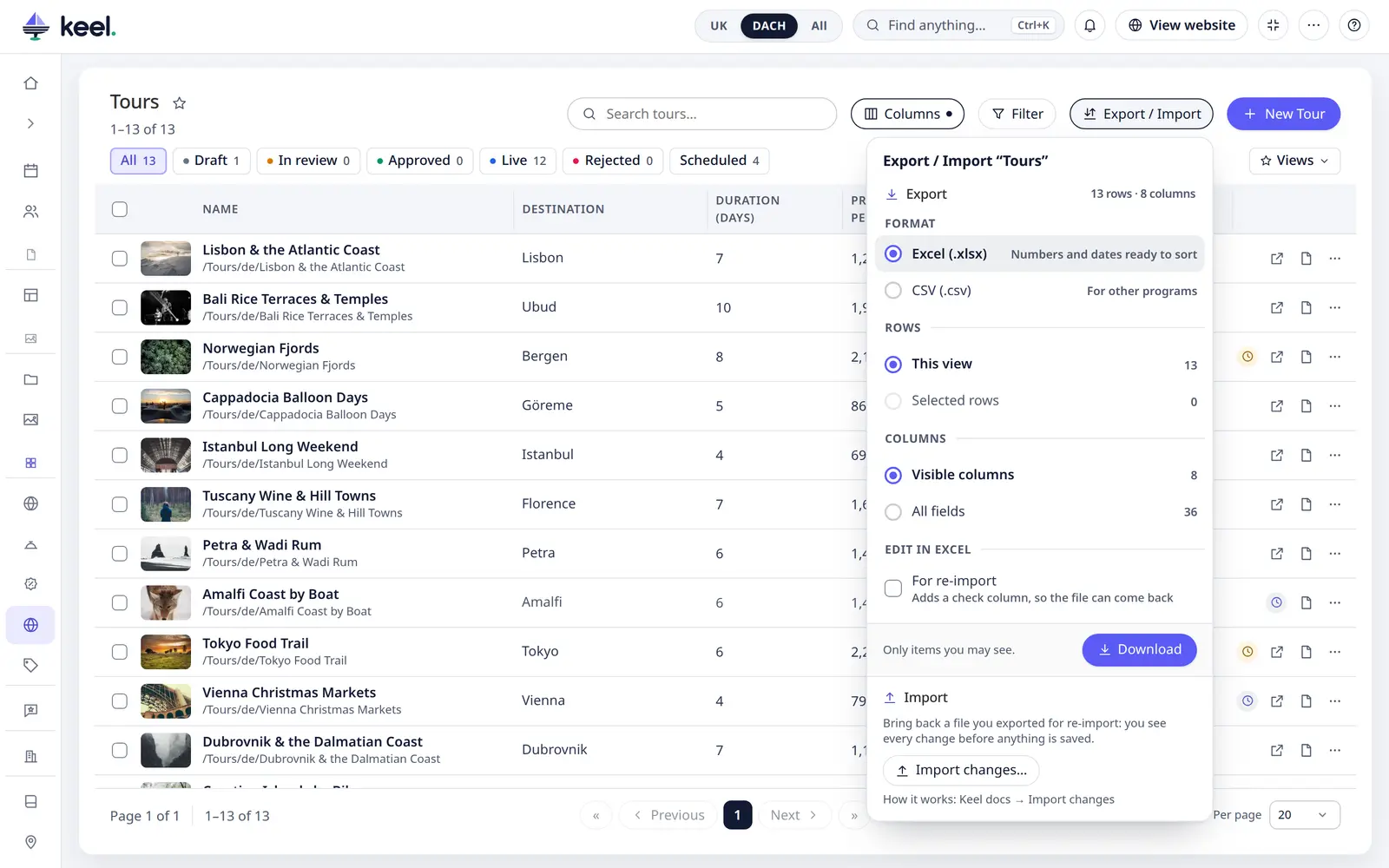
Any list can be downloaded as a spreadsheet: Export, the button above the list next to Columns. In a list where you may save items, you can also bring a file back: the button says Export / Import: its panel has an Export half, described here, and an Import half with Import changes….
What you choose
| Choices | |
|---|---|
| Format | Excel (.xlsx) – numbers and dates are real numbers and dates, ready to sort and add up; the header row is bold and stays at the top while you scroll. CSV (.csv) – for other programs and imports. |
| Rows | This view – exactly the rows the list shows, on every page: with your search, your filters, the quick filter (Published, Drafts, Assigned to me …), the status tab and chip, and the sort order. Selected rows – only the rows you ticked, in the list's order. |
| Columns | Visible columns – the columns you see, in the same order. All fields – every field the list can show (as in the Columns menu), however many. |
There is also For re-import under Edit in Excel: the file can then come back with your changes through the panel's Import half. Off by default: a plain export stays as it is.
Then Download. Up to 2,000 rows (export.direct_rows) the file downloads at once. A longer export runs as a
job on the server: the panel shows Preparing… with how many rows are done and downloads the file when it is
ready. You can close the page meanwhile – the job goes on, and its card and Setup → Bulk jobs offer Download for
three days (export.keep_hours). The file is named after the list and the day, e.g. Tours-2026-11-06.xlsx.
What is in the file
- The first column is the item's ID, then the columns. The column titles are the ones you see in the list, in your interface language.
- Values are written as you read them in the list: links to other items as their names (all of them, not just the first three), choices as their labels, Yes / No, statuses as their names, Assigned to as the person or team. Images are the file's path in the asset library.
- Dates are written as
2026-11-06, dates with a time as2026-11-06 14:05. - Texts in several languages are in the current content language: the language of the market chosen at the top (e.g. DE), else the site's main language. The column title says which, e.g. Name (DE).
- Long texts are written in full – the list cuts them off, the file doesn't.
Who sees what
An export holds only what you may see in the list: items in folders you are not allowed to see are left out, and the extra columns you added yourself stay empty for items you may list but not open – exactly as in the list.
Good to know
- CSV files are UTF-8 (accents and ž, ć, đ come out right in Excel) and use commas.
- In CSV, a text that begins with
=,+,-or@starts with an apostrophe ('+385 91 …), so a spreadsheet never runs it as a formula. Numbers are not affected. Excel files need no such guard. - One export has at most 100,000 rows (admins can change this:
export.max_rowsin keel.yaml). For a bigger list, narrow it with the search or a filter first. - Pages and assets have their own lists and no Export button yet.