
Assignments & activity
Some lists – for example Enquiries – let your team say who works on what. Each item can be assigned to one person or to a team (a Pimcore role), and every item keeps an activity log: who assigned it, who changed its status, and internal notes.
You only see this on lists where an admin has turned it on. Everywhere else nothing changes.
Assign an item
Open the item. At the start of the header's second row you see Assigned to and the current assignee (or Unassigned).
- Click the assignee. A small window opens under it (above it when there is no room below), with a search field at the top, then Unassign, People and Roles (teams).
- Type a few letters of a name, or pick from the list; ↑ ↓ move through it.
- Press Enter or click the name. Unassign removes the assignment.
Esc, Tab or a click outside closes it without a change and puts you back on the assignee.
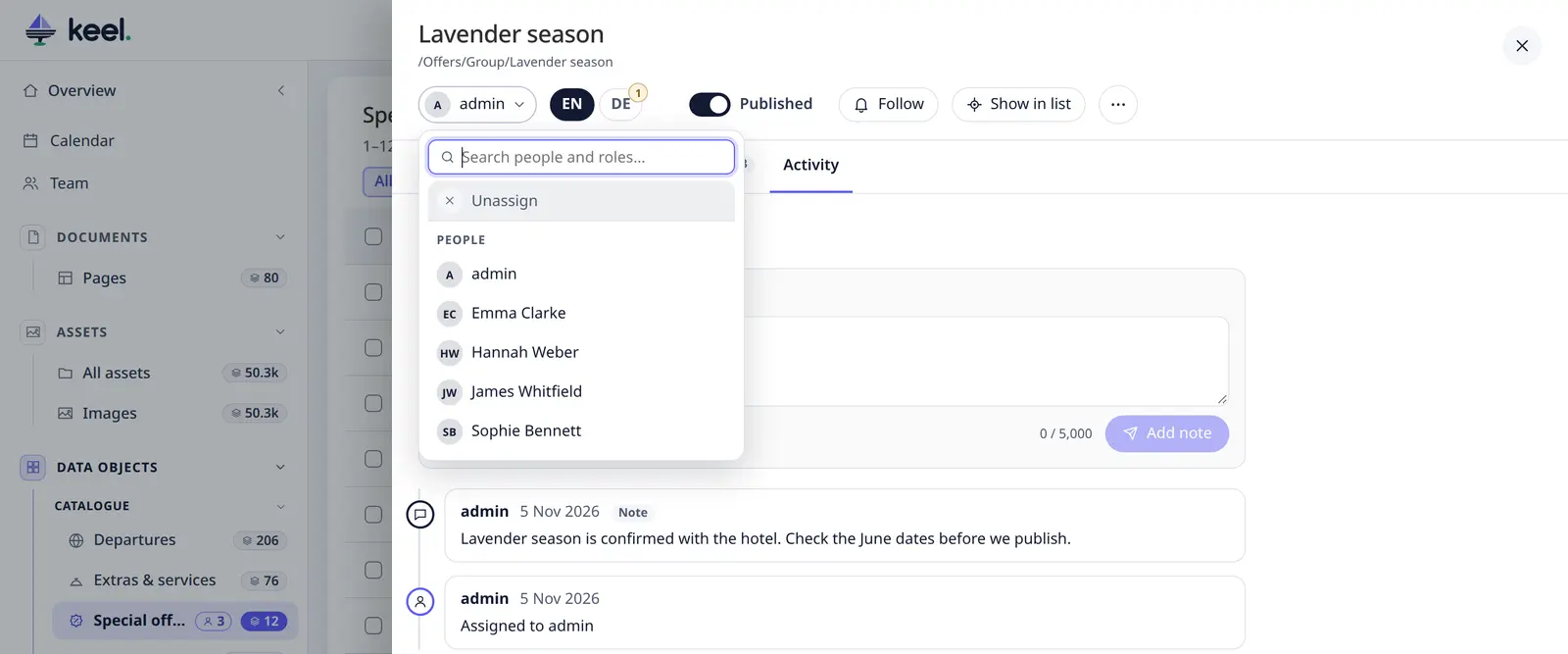
The list only offers people and teams who can see the item. Assigning does not save the form and creates no new version – the item stays exactly as it was.
If you may see the item but not change it, the assignee is shown without the button: you can see who works on it, but not change it.
Assign straight from the list
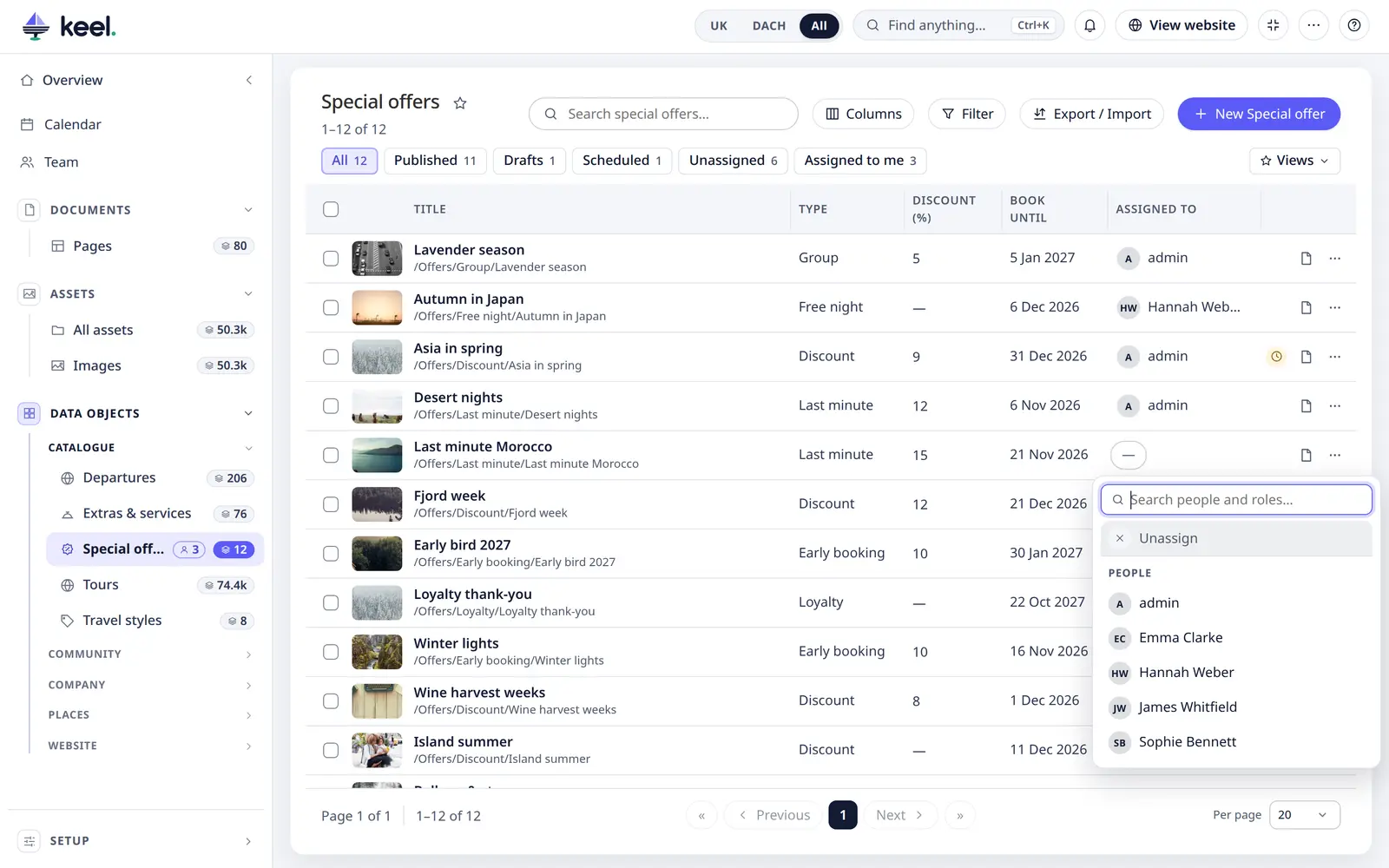
In a list, click the Assigned to cell of a row (a dash when nobody has it yet) – or tab to it and press Enter. The same small window opens under the cell; pick a person or team, or Unassign. It is stored at once, without opening the item, and the counts above the list follow. Esc or a click elsewhere closes it. If you may not change the item, the cell only shows the assignee.
The Assigned to column is shown by default on every list with assignments, also when your own column choice is older. Switch it off in Columns if you don't want it; Keel remembers that.
Assign many items at once
In a list, tick the items, then choose Assign to… in the bar at the bottom and pick a person or team in the same window. Keel asks before it assigns. Items you may not change, or that the chosen person cannot see, are skipped and listed in the result. More than 20 items run as a bulk job: you can keep working in Keel or close the page.
Find your items
- Unassigned – the chip above the list shows the items nobody (no person, no team) has yet, with their number.
- Assigned to me – the chip above the list shows only the items assigned to you or to one of your teams, with their number.
- Assigned to – the column shows each item's assignee. A team has a group icon. When a person or team was deleted in Pimcore, the item shows (removed user) or (removed role) – reassign it to someone else.
- The menu – a list with assignments shows a small outlined number next to its count: how many of its items are yours.
- The overview – the card Assigned to me shows how many items are yours, a chip per kind (Tours 4 · Enquiries 3) that opens that list filtered to yours, and the most recently assigned (as many as fit; Show all for the rest), each with its list's icon and when it was assigned. Click one to open it.
Notifications
When something is assigned to you, the bell in Keel's header shows it (and Pimcore's own notifications, as they are the same). When an item is assigned to a team, everyone in the team who can see it is notified. Assigning many items at once sends one notification listing them (per 500 items), not one per item. You are not notified about items you assign to yourself.
A new note on an item assigned to you tells you too. See Notifications & following.
Admins: Team in the menu shows how many items each person has, and the items themselves.
Activity
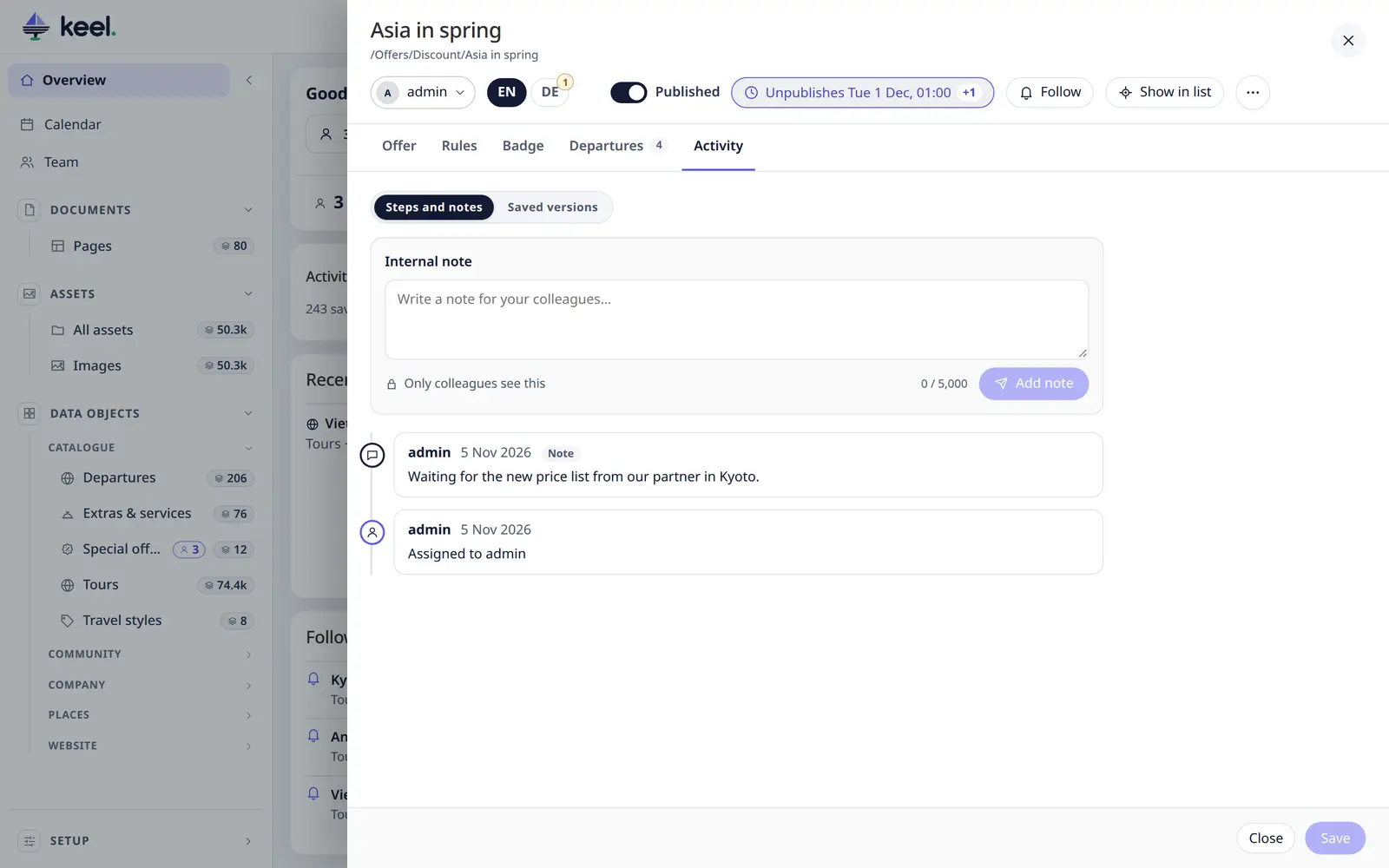
The editor's Activity tab, under Steps and notes, shows the item's log, newest first (its other part, Saved versions, is the item's History):
| Entry | What it says |
|---|---|
| Assignment | Assigned to Emma (and who it was before), or Unassigned |
| Status | The status before → after, when the list has a status field |
| Note | An internal note |
| Workflow step | The step, its note and fields (Workflow steps); also steps run in Pimcore Studio |
Classes without assignments that have a Pimcore workflow get the tab too, with the workflow steps only and no note box.
Every entry says who and when (hover the time for the exact date). Changes made by imports or scripts show System.
Status changes are logged however they are made – in Keel, in Pimcore's own editor, or by an import.
Internal notes
Write in Internal note at the top of the Activity tab and click Add note (or press Ctrl Enter). Notes are plain text – line breaks are kept, up to 5,000 characters.
Write @ and a colleague's Pimcore login name (@emma) to mention them: they get a notification. The item's
assignee and its followers are told about every new note.
Notes are only for your colleagues: they are never shown on the website and do not change the item. Anyone who can open the item can read and add notes. Notes cannot be edited or deleted in Keel.