
Workflow steps
Some items go through a fixed process before they are released: Draft → In review → Approved → Live. Such a process is a Pimcore workflow. It is set up by your developers. In Keel you see where an item stands and run the next step.
The steps, who may run them and what they do are decided by Pimcore. An item looks the same in Keel and in Pimcore Studio, and a step run in one shows in the other.
See where an item stands
The editor's header shows the item's current place on the workflow button, the one status of the item: the place, and under it Live on website or Not on website ((not saved) until you save a change to it). Colours and names come from the workflow. To publish or unpublish, use the On the website switch at the top of the button's panel; it takes effect when you save.
In lists, the place is the list's status: the pill in the row, and the filter chips above the list (Draft, In review, Approved and so on) with their counts, in one row without tabs (Workflow lists).
The field that holds the place is read-only in the form, with the note (changes through workflow steps). Only a step can change it.
Run a step in the editor
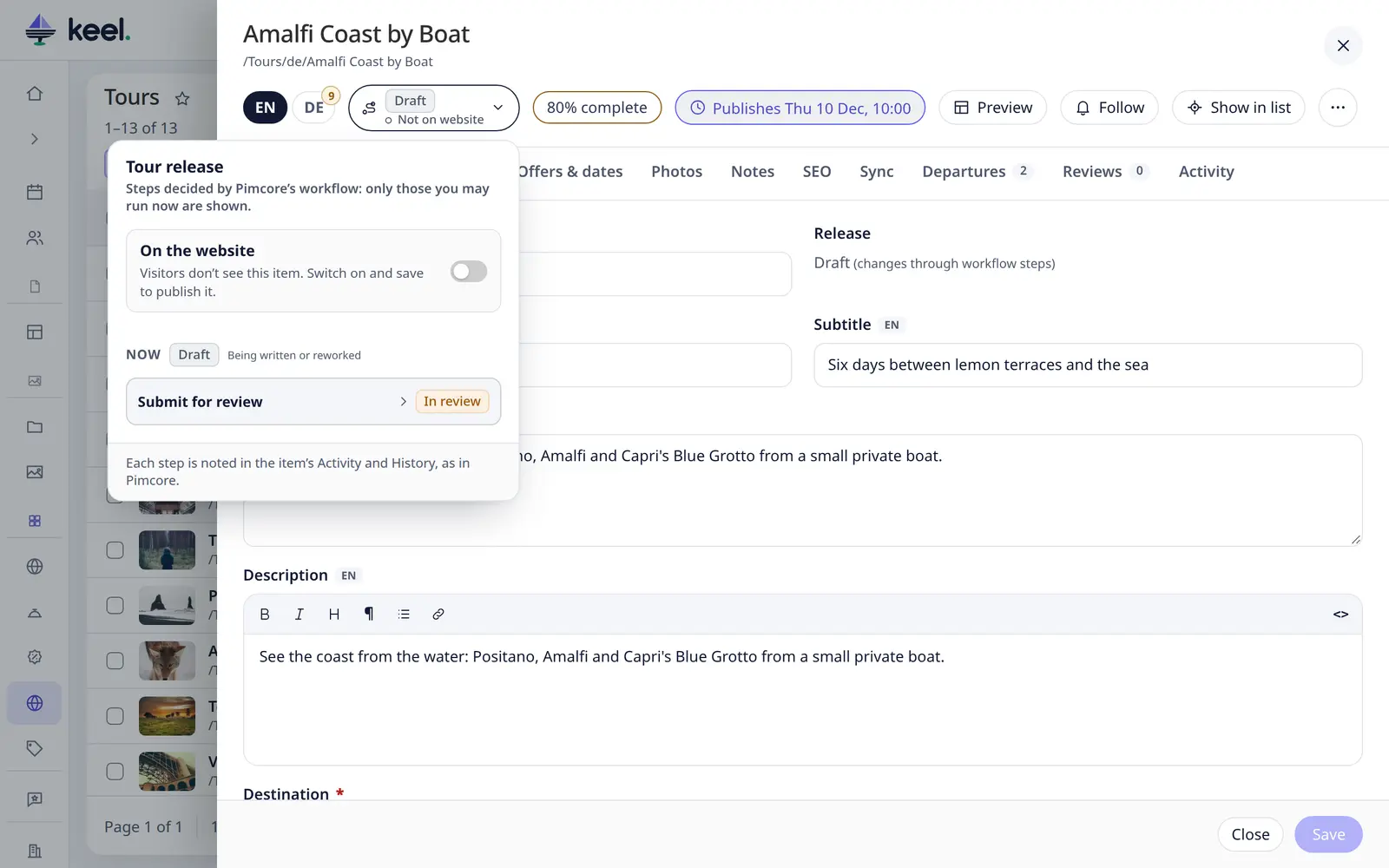
- Open the item and click the workflow button in the header.
- The panel lists the steps you may run now, each with the place it leads to.
- Click a step. If it asks for nothing, it runs at once.
- If the step asks for a note or other fields, fill them in and click the button with the step's name.
The button changes and the footer confirms the step, for example Submit for review – now: In review.
- Only steps you may run are shown. A step that needs another role, such as Approve, is not in your list. The panel says so when there is nothing you can run.
- A required note is marked Note (required). The button stays off until you write one.
- A step can publish or unpublish the item. The panel says so (Publishes the item).
- Steps Keel cannot show. A step that asks for something Keel has no form for is greyed out, with a hint to run it in Pimcore Studio.
With unsaved changes
The step works on the saved item, so Keel deals with your unsaved changes first. By default it offers Save my changes first, then run the step, ticked. Untick it to run the step on the saved item. Your changes then stay in the form, still unsaved.
Your developers can set a step to always save first, or to skip the question.
While an item is in review
A workflow can lock an item in a place, for example so that editors cannot change it while it is in review. The form is then read-only and Publish and Delete are off, exactly as in Pimcore. Steps stay available, so an editor can still withdraw the item if the workflow has that step.
Run a step from a list

Click the place pill in a row. The menu asks Pimcore which steps you may run on this item. Pick one, write the note if it asks for one, and the row changes in place. If the new place no longer fits the chip you are looking at, the row fades out.
There is no Undo in the message: to go back, run another step of the workflow.
Run a step on many items
- Tick the items.
- Click Workflow step… in the bulk bar.
- Choose the step. Each one shows where it starts and where it leads, for example Submit for review (Draft → In review).
- Fill in the note or fields if it asks for them. They are the same for every item.
- Click Run and confirm.
Keel checks each item on its own. Items the step is not possible for are skipped and listed with the reason, for example 2 items moved on · 1 not changed (Kyoto in Autumn: This step is not possible from the item's current step.).
More than 20 items run as a bulk job on the server: each step is checked as you, with your roles, and it goes on when you close the page.
Where steps are recorded
- Activity tab – every step with who, when, the note and the note's fields, including steps run in Pimcore Studio. The tab appears for every item with a workflow. See Assignments & activity.
- Saved versions (History) – each step saves the item, so it adds a version.
- Setup → History – Ran the workflow step "Approve" on Tour "Kyoto" – now: Approved. A step cannot be reverted there: run another step instead.
Pimcore also sends the notifications the workflow is set up with.
Setting up a workflow for Keel: Workflows.