
Pages: settings & SEO
Documents → Pages lists the website's pages as search engines see them.
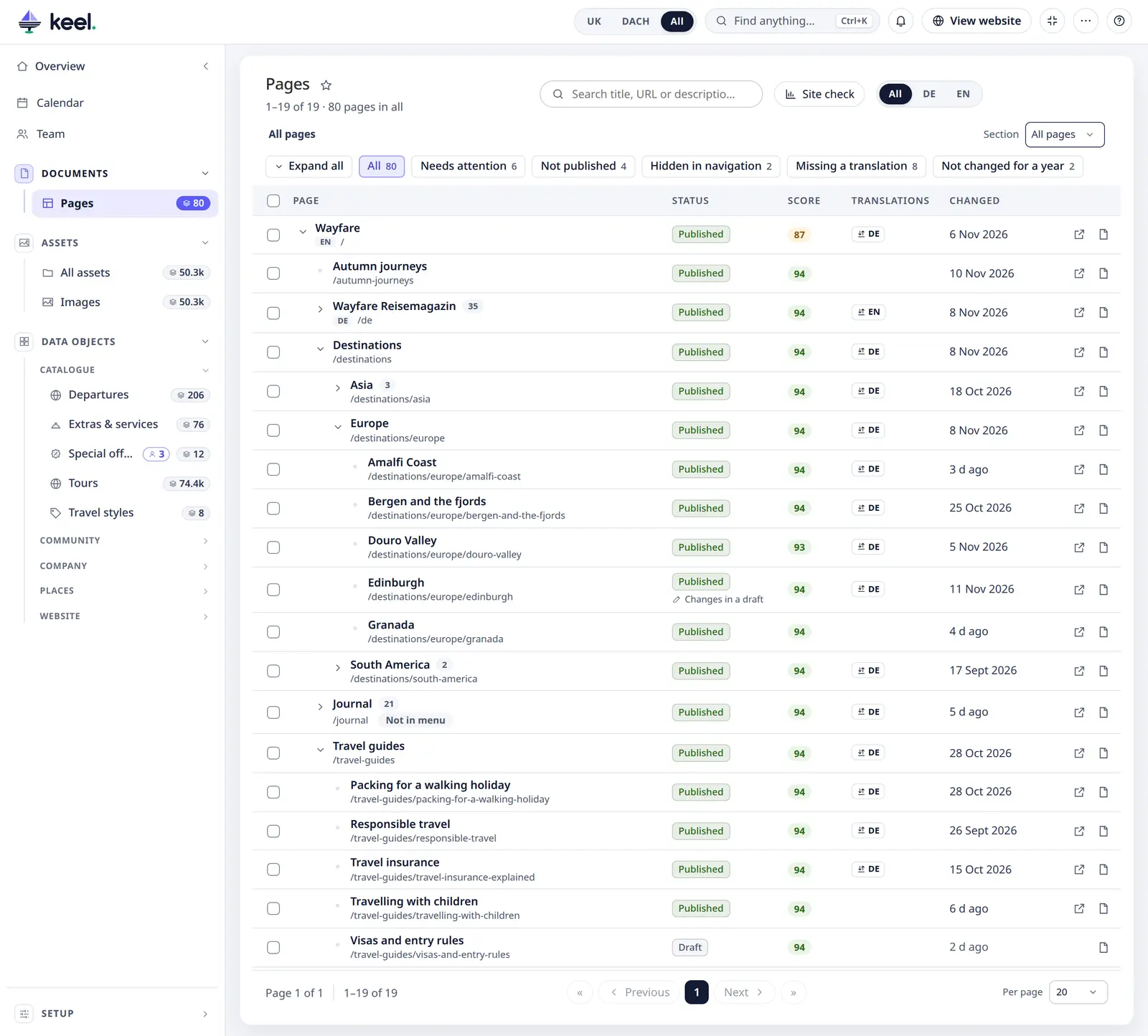
The list
Each row is one page: its name (the menu name, else the title) with the address under it, its Status, its Score from the last Keel page check, its Translations and when it was last Changed. The full title shows when you point at the name.
- Status – Published or Draft (not on the website). Changes in a draft means a newer, unpublished version is waiting; a clock shows the next planned publish or unpublish.
- Search title, URL or description; with several languages, pick one at the top (All, EN, DE …).
- Filters: All, Needs attention (SEO issues – choose which one), Not published, Hidden in navigation, Missing a translation and Not changed for a year. The last two only show when they find something.
- The rows work with the keyboard as in every list (one tab stop, arrow keys), with a Skip to pages link at the top.
The tree
The list shows the site's page tree: pages sit indented under their parent, the arrow opens and closes a page, and a closed page shows how many pages are inside it. Expand all / Collapse all opens or closes every level. Keel remembers what you opened.
While you search, filter or sort by a column other than Page, the list is flat.
Sections: large sites
On a site with hundreds or thousands of pages, work in one part of the tree at a time. Section (top right) lists every page with at least three pages under it – Blog, Blog 2025, Services … Pick one and the list shows only that page and everything below it; the counts on the filters count that section only.
The breadcrumb above the filters (All pages › Blog › Blog 2025) goes back up one click at a time; × shows all pages again.
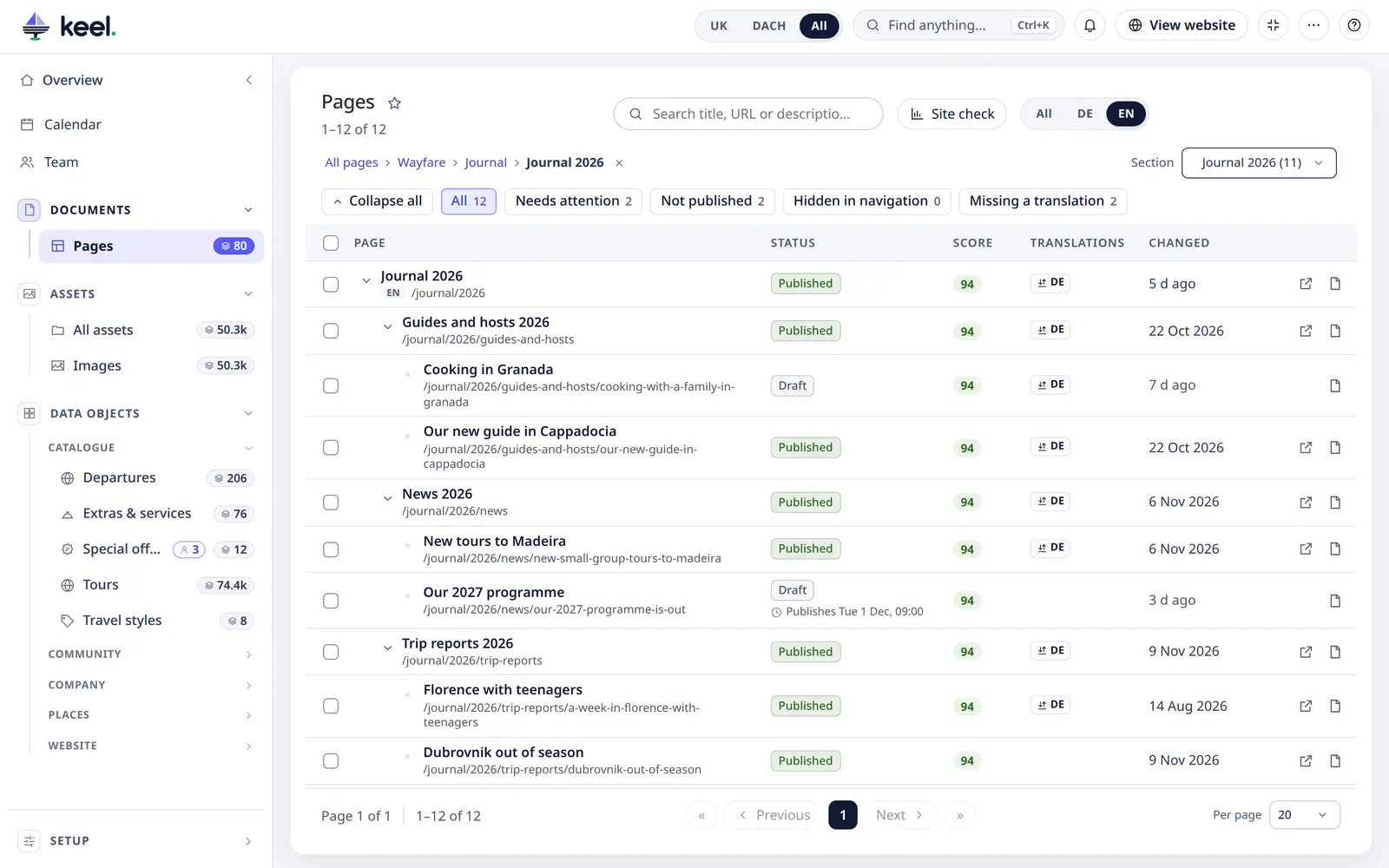
Long lists are shown page by page with the same pager as every list (50 rows unless you choose another size).
Sorting
Click a column header to sort: once ascending, once descending, a third time back to the tree. While a sort is on, a chip says so – Sorted by Changed – and its × returns to the order of the tree.
Sorting by Page keeps the tree and sorts each level A–Z (or Z–A).
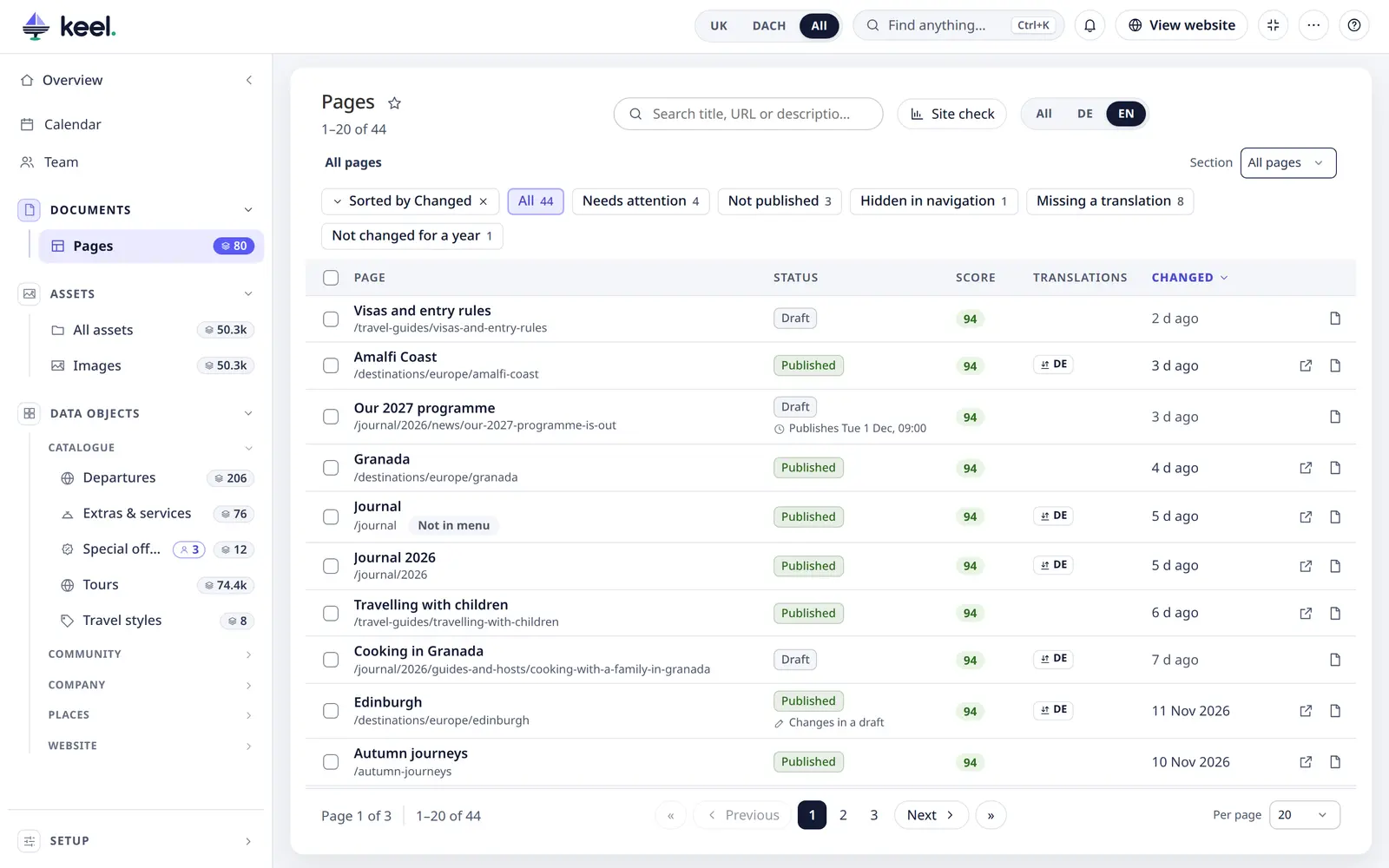
Translations
On a site with several languages, Translations shows the page's versions in the other languages – the pages linked to it as translations in Pimcore (the link the website's language switch uses). A tag such as ⇅ EN means this page has an English version; it is not the page's own language. Click it and the list shows that version: it switches the language, opens the section that holds it and highlights the row.
Pages without a version in another language have an empty cell. Missing a translation lists them all – the translator's to-do list.
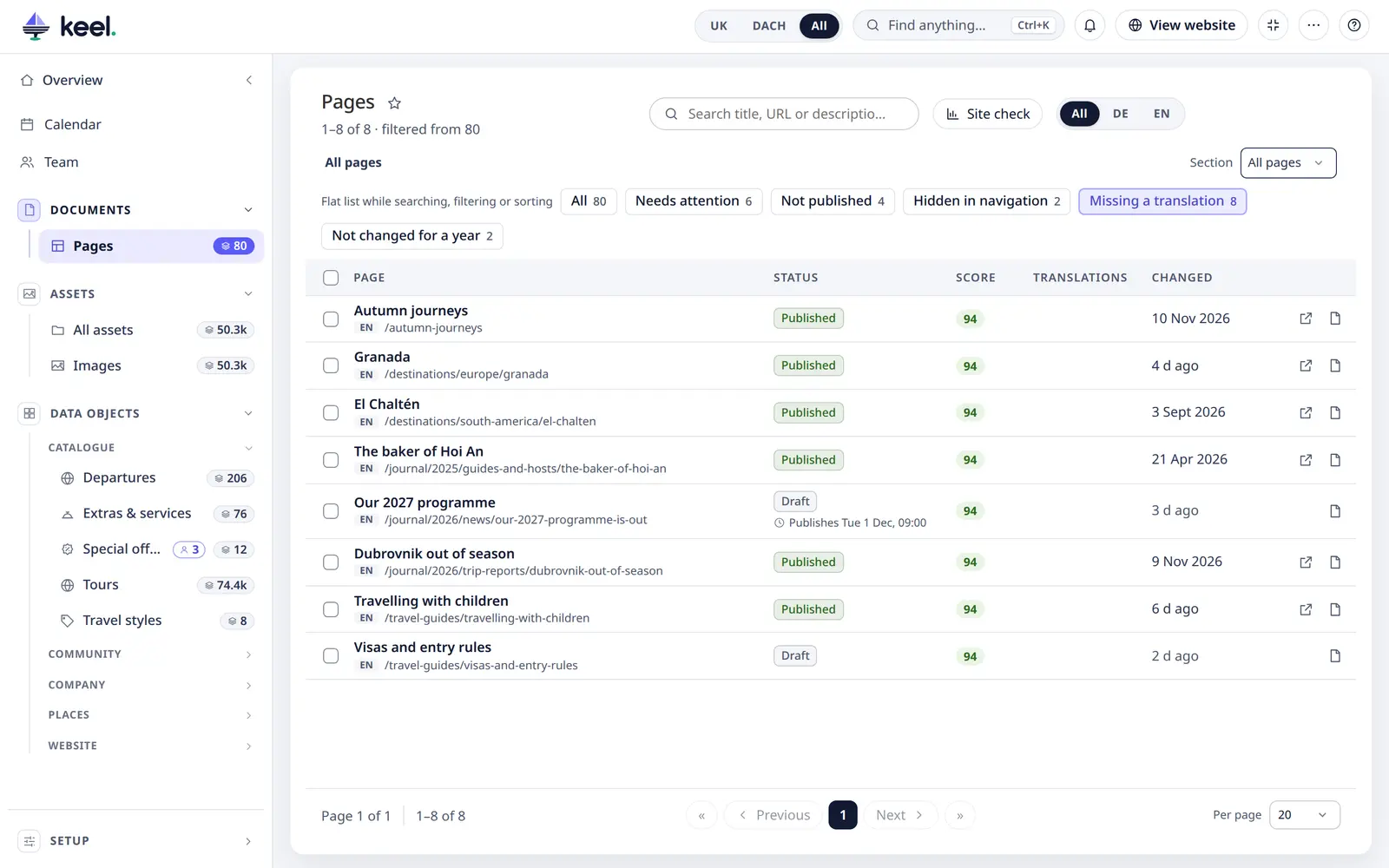
What counts as an issue
| Issue | Rule |
|---|---|
| No title / No description | Empty |
| Title too short / too long | Under 15 or over 60 characters |
| Description too short / too long | Under 70 or over 160 characters |
| Duplicate title / description | The same as another published page of the same site and language |
Page settings
Click a page to open its settings.
If the page uses a file whose usage rights have ended or end soon, a warning at the top of the panel says so.
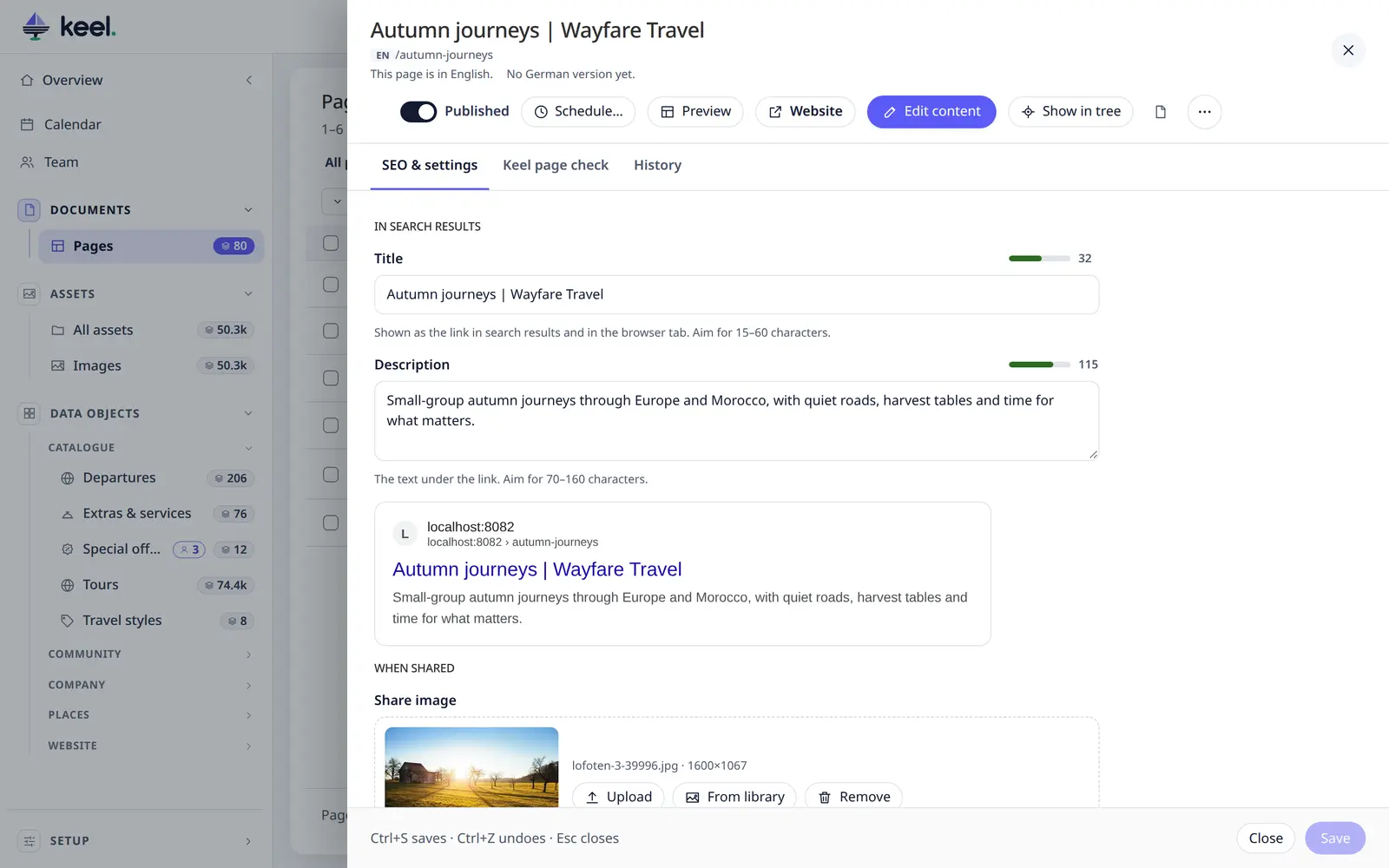
SEO & settings
-
In search results – Title and Description, with a preview of how the page looks in Google.
-
Address – Page name in the URL and an optional Pretty URL, a short extra address for campaigns.
Warning
Changing the page name changes the address of the page and of every page under it.
On a published page, Keel then shows the switch Send visitors of the old address to the new one (on at the start). Save, and Keel makes a permanent redirect (301) from each old address to its new one – for the page and the pages under it. The redirects are kept for a year, like the ones Pimcore's own editor makes on a rename.
The switch is only there when the site uses Pimcore's redirects (the SEO bundle) and you have Pimcore's redirects permission. Otherwise the panel says that links to the old address stop working unless a redirect is set up – ask an admin to add one in Pimcore.
-
Navigation – Name in the menu, Tooltip and Hide this page in navigation menus.
-
Controller & template – which code builds the page and which layout it uses. Change these only when you know the page needs it; Keel warns you.
When shared
How the page looks when someone shares its link on LinkedIn, Facebook, X or in a chat:
- Share image – upload one or pick it from the library. Best at 1200 × 630 px; networks crop it to a wide 1.91 : 1.
- Share title and Share description – optional; empty means the title and description from search results.
- Preview – switch between LinkedIn, Facebook and X to see the card as each network shows it.
Keel warns when the image is missing or too small, when titles are too long, and when the website's template does not output share tags at all (then a developer adds them once – see Extending Keel).
Tip
Networks keep a copy of each preview for a while. After a change, refresh it with LinkedIn's Post Inspector or Facebook's Sharing Debugger.
Language and translations
Under the page's address the panel says which language the page is in and where its versions in the other languages are: This page is in German. English version: EN /journal/2025/trip-reports/…. Click the address to open that version (Keel asks first when you have unsaved changes). A version that is not published says so; a language without a version says No English version yet.

Plan publishing
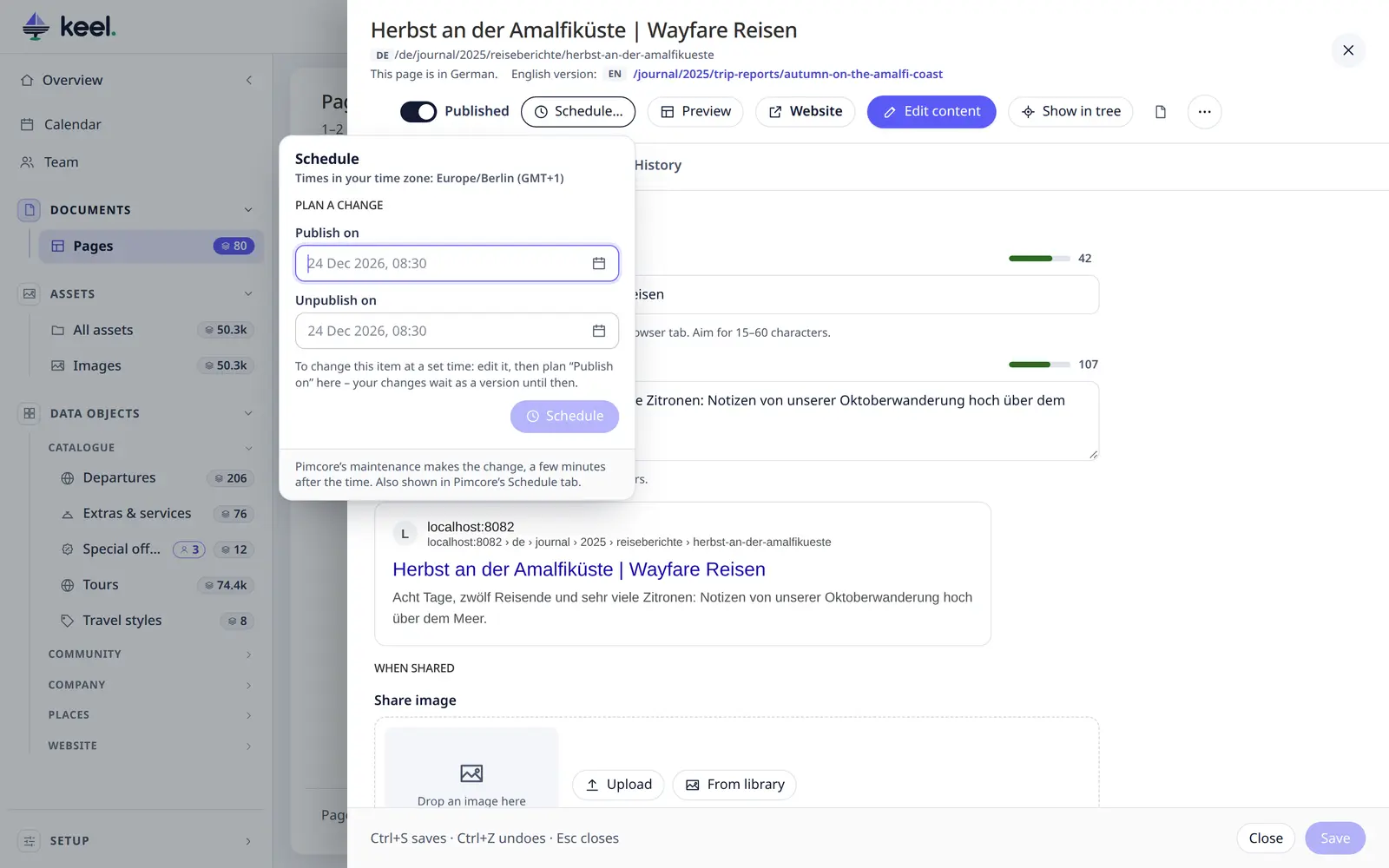
Schedule… next to Published publishes or unpublishes the page at a set date and time – a campaign page that goes live on Monday, a notice that ends on the 31st. It works as for items: see Scheduled publishing. The planned change shows as a button next to Published and as a clock in the list's Status column.
Delete a page
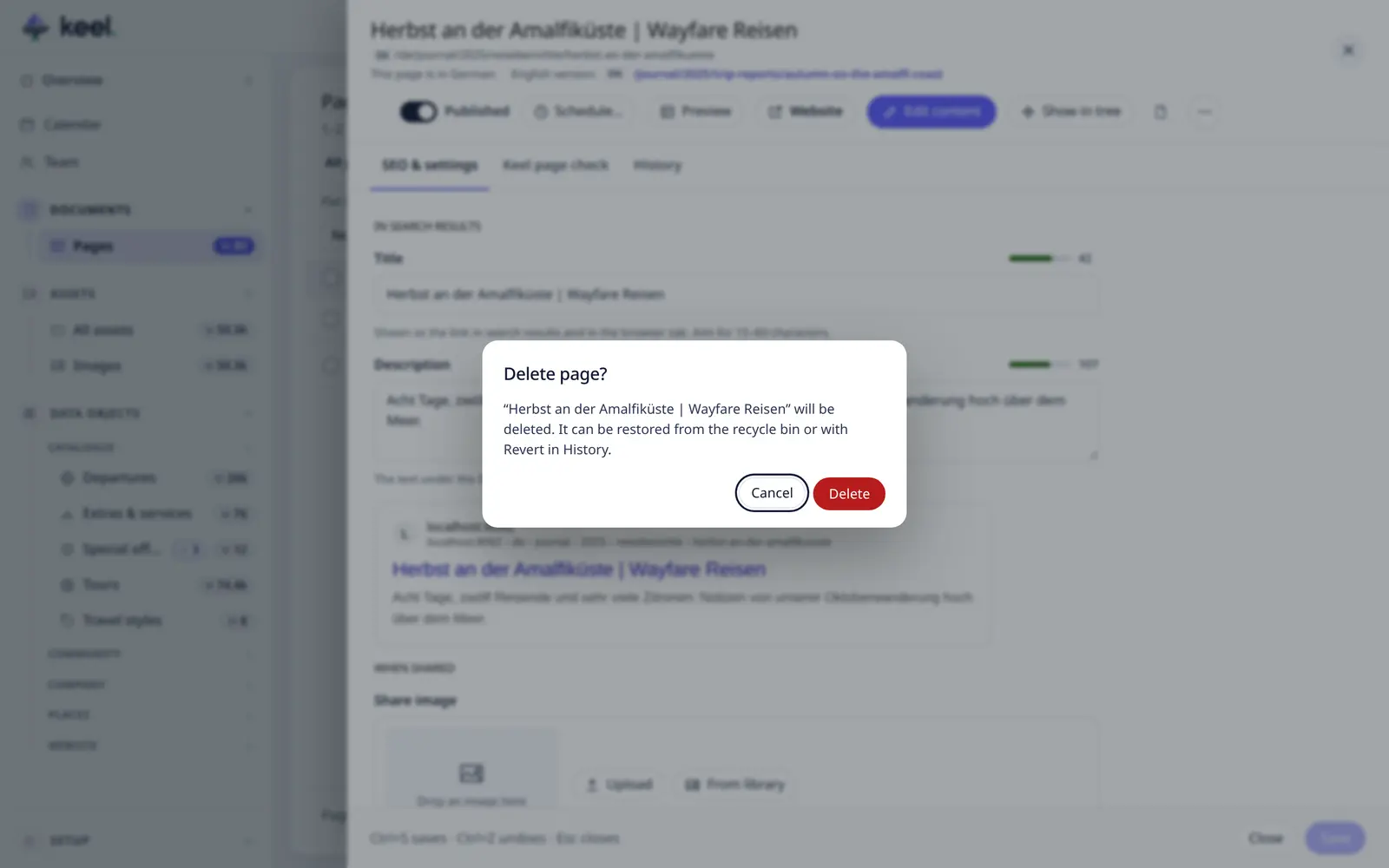
Delete… in the panel header's ⋯ menu removes the page – and every page under it; the confirmation says how many. The page goes to the recycle bin, where Restore puts it back with everything that was under it. Homepages and the root page of a site can't be deleted here. You need Pimcore's delete right on the page.
Keel page check scores the saved page for SEO, accessibility, speed and good practice – see Keel page check & Site check. The tab shows the last result (also from a Site check run) until you run it again.
Page scripts (admins only) add code to just this page – see Scripts & tracking.
History lists the page's saves. Settings can be restored here; content changes are listed and restored in Pimcore.
The top bar has Published, Schedule…, Preview, Website, Edit content – see the content editor – Show in tree, Open in Pimcore's page editor and ⋯ (with Delete…). The footer has a hint, Close and Save.