
Notifications & following
The bell at the right of the header tells you when something needs you. A number on it shows how many notifications you have not read yet.
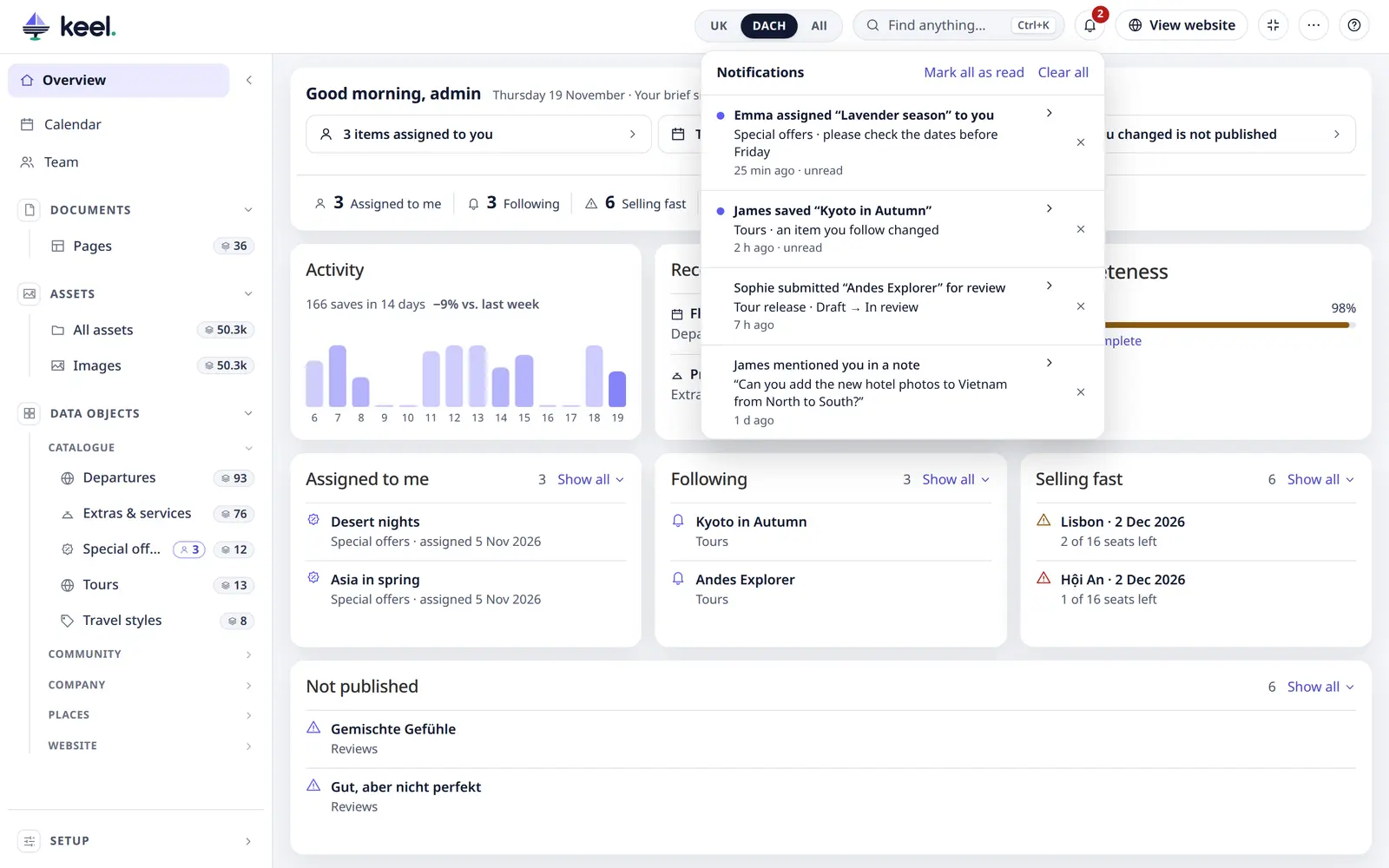
The bell and following items are in Pimcore Studio; the classic admin has no bell.
What you are told about
| Notification | When |
|---|---|
| Assigned to you | Someone assigns an item to you or to one of your teams (assignments) |
| New note | Someone adds an internal note to an item that is assigned to you, or that you follow |
| You were mentioned | Someone writes @your-login-name in a note |
| Workflow step | Someone runs a workflow step on an item you follow, are assigned to, or saved last – so you hear when your draft is approved or sent back |
| An item you follow changed | Someone else saves an item you follow, or saves a new draft of it |
You are never told about your own actions, or about items you may not open. The texts are in your interface language.
The bell
- Click the bell. Your notifications are listed, newest first.
- Click one to open its item, page or file. It then counts as read.
- Mark all as read sets the number back to zero.
- Clear all deletes all your notifications – in Keel and in Pimcore.
- × on a notification (it shows when you point at it) deletes just that one.
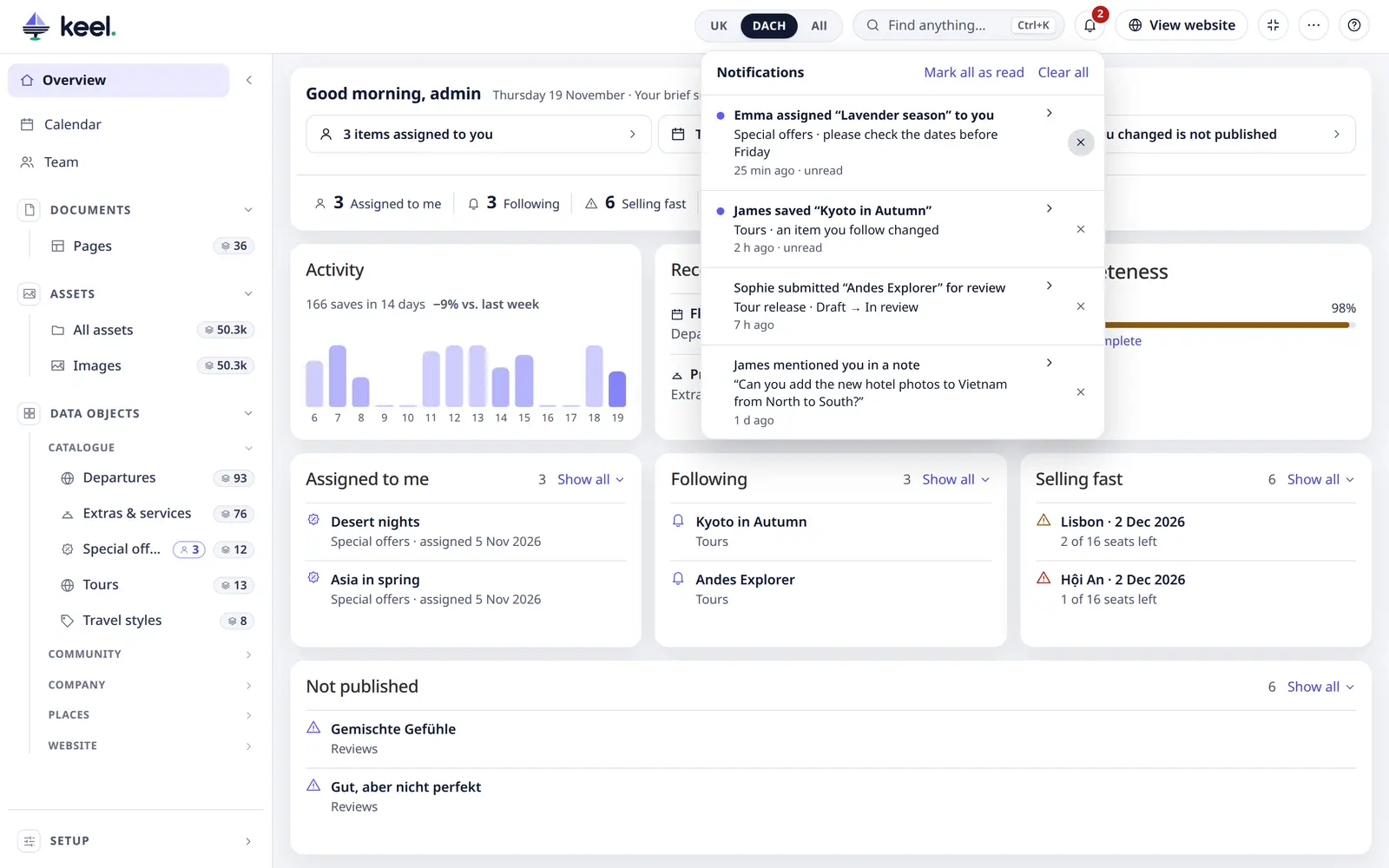
Keel's bell and Pimcore Studio's own bell show the same notifications. When you read one in Keel, Studio's number goes down too, and notifications sent from Studio show up in Keel's bell. Older notifications are in Pimcore's notification list.
Keel checks for new notifications once a minute, and when you come back to the browser tab.
Mention someone
In an item's Activity tab, write @ and the person's Pimcore login name in a note, for example
@emma can you check the prices? Emma gets a You were mentioned notification. An e-mail address is not a
mention.
A note also tells the item's assignee and everyone who follows the item.
Follow an item
Open the item and click Follow in the editor's header. The button now says Following.
From then on you are told when someone else saves the item. Several saves while the notification is still unread make one notification, not many – a draft and a live save are told apart. Click Following again to stop.
The items you follow are on the Following card on the overview. The card only shows while you follow something. When an item is deleted, nobody follows it any more.
Daily brief
The top of the overview shows your Daily brief: what is new for you since yesterday, one line each – unread notifications (and how many mention you), items assigned to you (and how many are new), items you follow that someone else changed, what goes live or offline today and tomorrow, your unpublished drafts, and how much the team saved. Click a line to open those items. Lines with nothing to tell are left out; on a quiet day it says so.
Hide it for yourself in My view → Start → Overview cards; an admin switches it off for everyone in Customize → Overview.