
Bulk changes
Change many items at once.
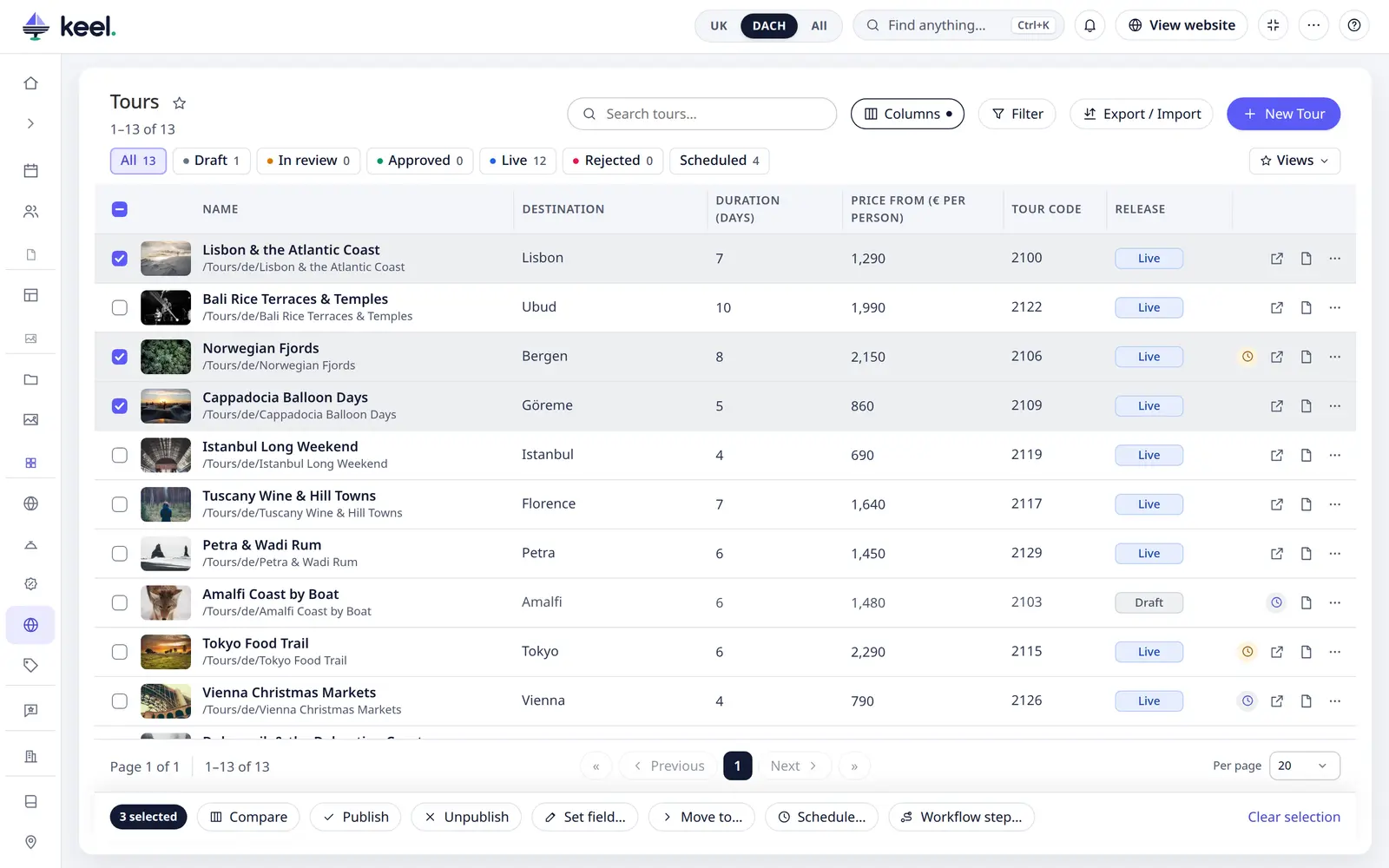
Select items
- Tick the box at the start of each row, or the box in the title row to select every item on the page.
- When the whole page is selected, the bar at the bottom offers Select all … matching: every item that matches your search, filters, chips and tab, on all pages. There is no 20,000 limit any more; the most one job can change is 200,000 items by default.
- After Select all, you can still untick single rows. Changing the search, a filter, a chip or the tab clears the selection.
Actions
The bar at the bottom shows how many items are selected:
| Action | |
|---|---|
| Publish / Unpublish | Make the items visible on the website, or hide them |
| Set field… | Give one field the same value on every selected item: choices, yes/no, numbers, dates, a linked item. Fields per language ask for the language. |
| Use parent value | In Set field…, on classes with inheritance: back to the parent's value (Variants) |
| Move to… | Move the items to another folder |
| Schedule… | Publish or unpublish the items at a later time (Schedule) |
| Workflow step… | Run a step of a Pimcore workflow on each item; items it is not possible for are skipped and listed (Workflow steps) |
| Compare | With two to four items ticked: the items side by side, the differences marked (Compare items) |
| Clear selection |
Keel asks before it changes anything: "28 items will be changed and saved right away. Each change can be undone in the item's History."
Up to 20 items
Up to 20 items are saved straight away, and the result shows in the bar: 18 saved · 2 not changed.
More than 20 items: a bulk job on the server
More than 20 items, and every Select all matching, run as a bulk job on the server. You can close the page, go on working or sign out: the job carries on, and it survives a restart of the server's background worker.
- What it changes. Keel reads the matching items once, when you confirm, and works through exactly those. Publishing everything under Drafts therefore reaches every draft, even though each item leaves the view as it is published. Items created later are not included. If the list has changed since you selected, Keel shows the new number and asks again.
- Your rights count, item by item. The job runs as you. An item you may not change is left alone and listed. If your rights change during the job, the new rights count within a few seconds. If your user is deactivated, the job stops.
- Progress. A card at the top of the screen shows 340 of 1,200 · 28% and, on long jobs, the time left. It comes back when you reopen Keel, also on another device. Waiting for the background worker… means the server has not picked the job up yet: the job is safe, but if the message stays, ask an administrator (troubleshooting).
- Cancel. The job stops before its next item. Items done so far stay saved, the rest stay as they were.
- Result. When all went well the card slides away. If some items were not changed, it stays: Show details lists the reasons with how many items each, then the items, with Download report (CSV) for all of them, one line per item.
- History. The whole job is one entry in Setup → History; each item also has its own History.
Test run
In the confirmation of a bulk job, Test run does everything except save: it checks your rights on every item, the value and the workflow step, and reports 12,300 would change, 41 would not. It cannot see everything: a required field that is empty only shows up when an item is really saved.
Bulk jobs page
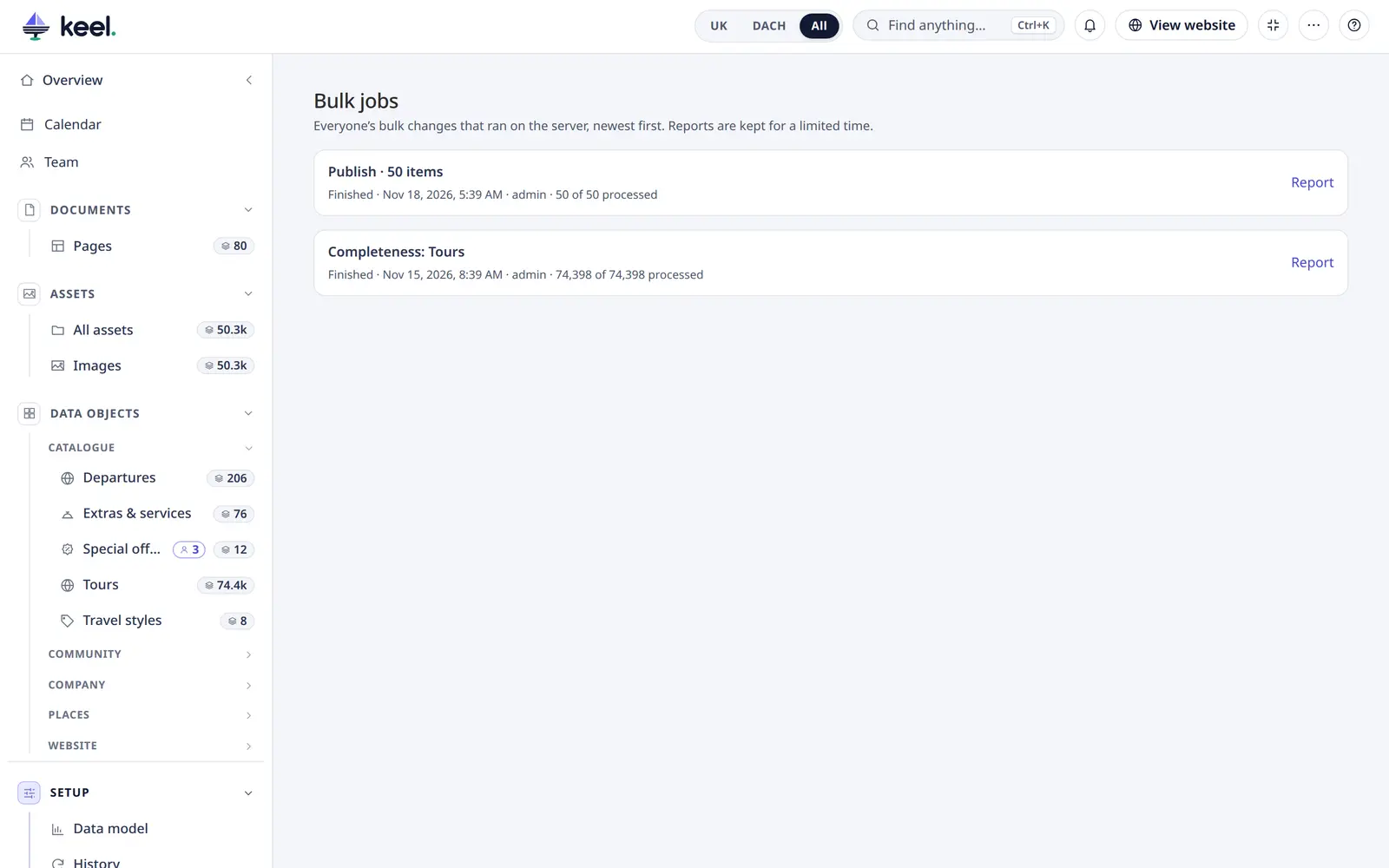
Setup → Bulk jobs lists your jobs, newest first, with their reports. Administrators see everyone's. Reports are kept for 30 days. Long exports and long History reverts are jobs too and show here; a finished export job has Download (its file is kept for three days).
Pages
The Pages list has bulk actions too: Publish, Unpublish, Hide in navigation and Show in navigation.