
Completeness
How complete an item is, as a number: what your team requires of it, and how much of that is filled in. You see it once an administrator has switched a rule on for a class.
In the editor
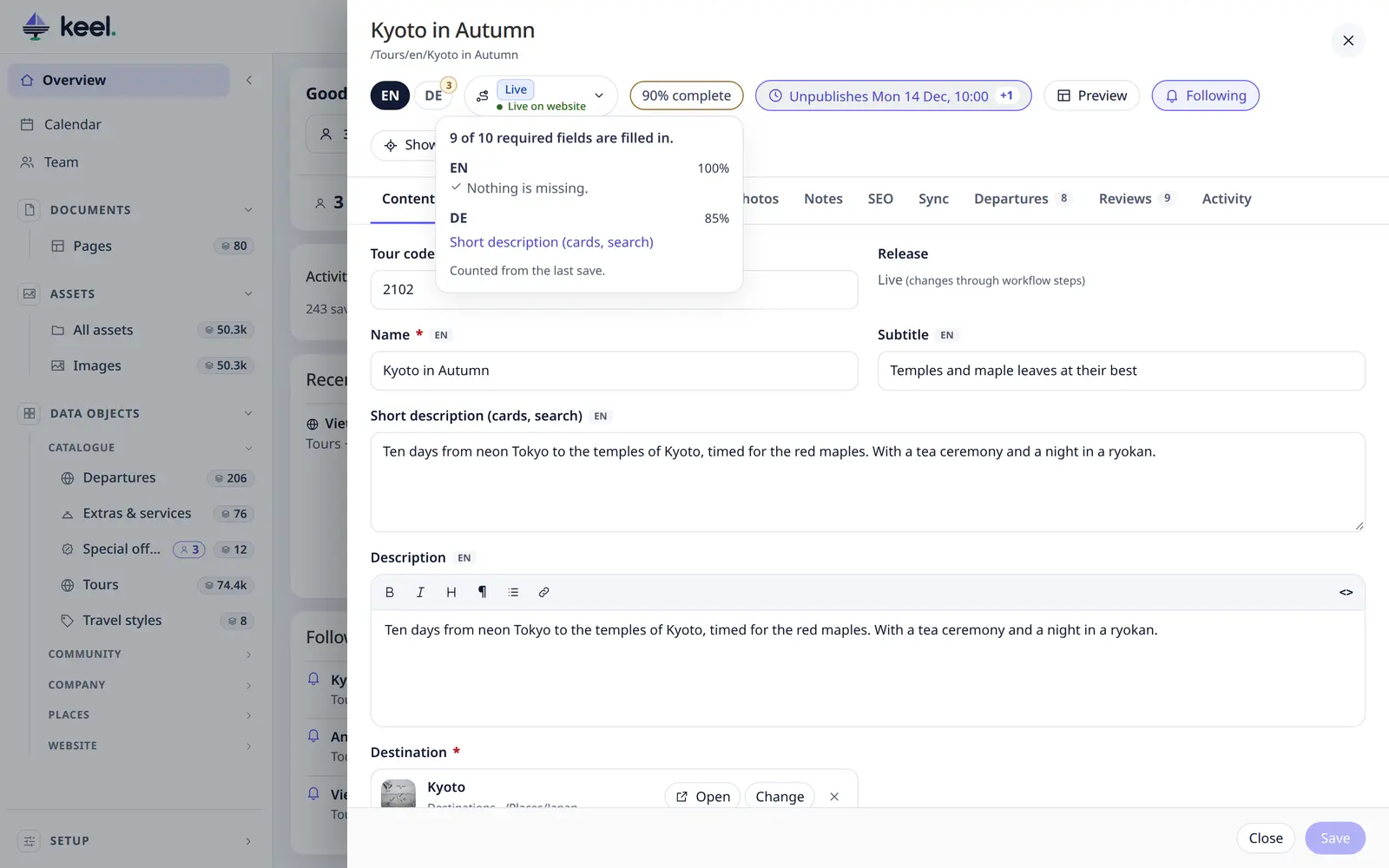
The top bar shows a badge such as 78% complete. Click it to see what is missing, per language. Click a field to go to it: Keel opens its tab and language.
The badge counts what was last saved, so it changes when you save, not while you type. If you can only save versions of a published item, it counts the version you see, not the live item.
Publishing needs a score
An administrator can decide that items of a class may only be published once they are complete enough, for example at 80 %. Then Publish on an incomplete draft or new item is refused, and Keel says what is missing:
Not complete enough to publish: 80% filled in, 100% is needed. Missing: Subtitle (DE), Short description (DE).
Fill in the missing fields and publish again. You can always save the item as a draft, and items that are live already can still be saved.
In a list
The Completeness column shows the score with a small bar. Hover over it to see what is missing. — means there is no score: nothing is required of this item in this language, or the item has not been counted yet.
- Sort by the column to find the items furthest from done. Items with no score come first going up.
- Language. With a market chosen in the header, the column shows that market's language. With All it shows the score over all languages. Completeness (DE) and the like are in Columns too.
- If your administrator shows the score to everyone, the column gives way when the list runs out of room. Pick it yourself in Columns to keep it there.
Filtering
In Filter you find:
- Completeness: is, under, over, between, is empty (no score).
- Missing field: items that lack any of the fields you tick, or none of them.
Select all matching, bulk changes and Export follow these filters like any other, and a saved view can hold them. An Export can have the score as a column: a number from 0 to 100.
On the overview
The Completeness card shows each list's average, how many items are incomplete, and the average per language. Items incomplete opens the list filtered to them. The card counts every status; a list with status tabs opens on its Open tab, so the list can show fewer. Hide the card in My view.
What you can see
- A score tells what is in an item's fields, so you see it only for items you may open. In a list, items you may only see in lists have an empty cell, are not found by these filters, and sort as having no score.
- A language your workspace leaves out has no score for you. The score over all languages is hidden too, as it includes that language.
- The editor names only fields that are in your form.