
Editing an item
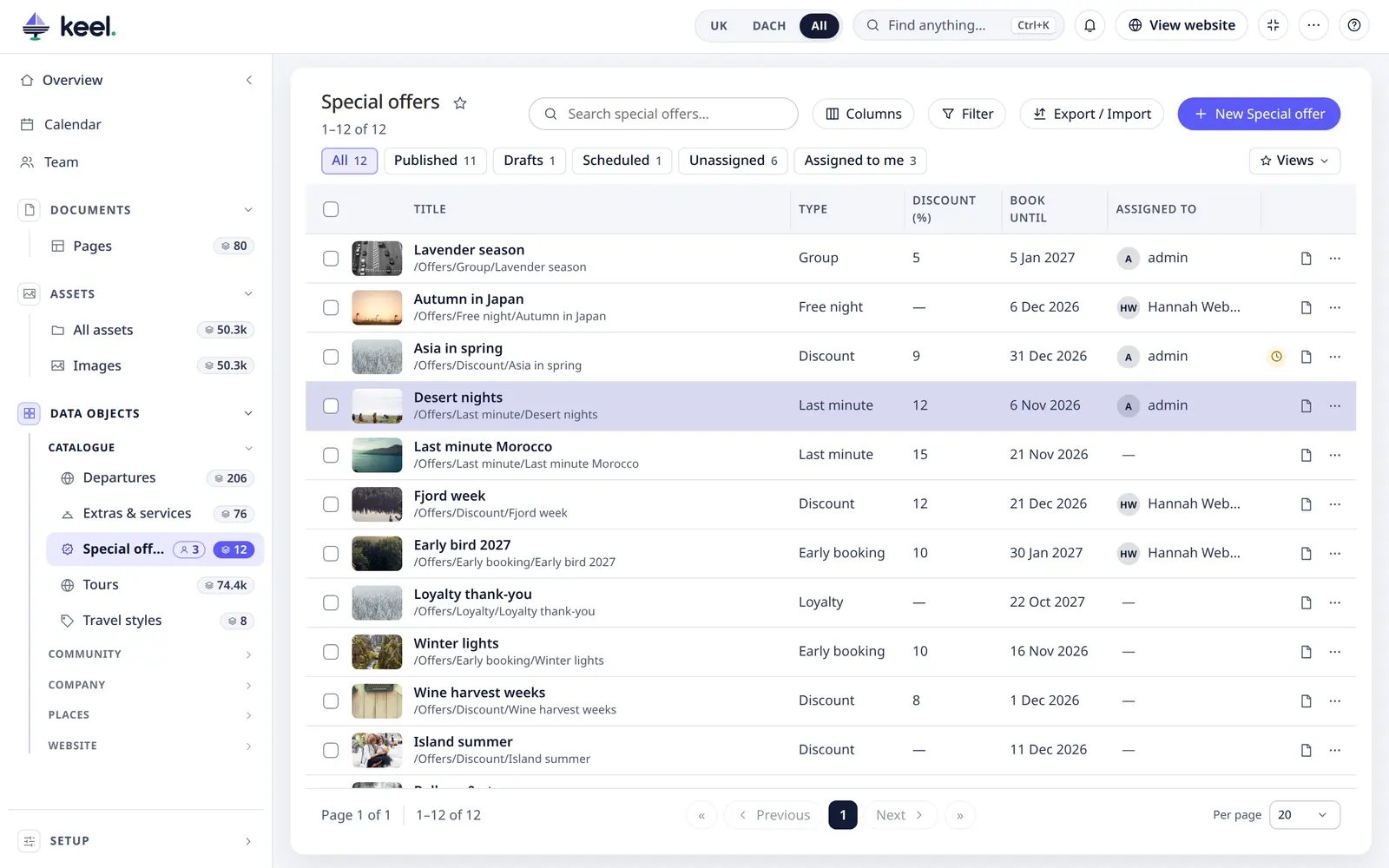
Click a row in a list, or use New …, to open the editor on the right.
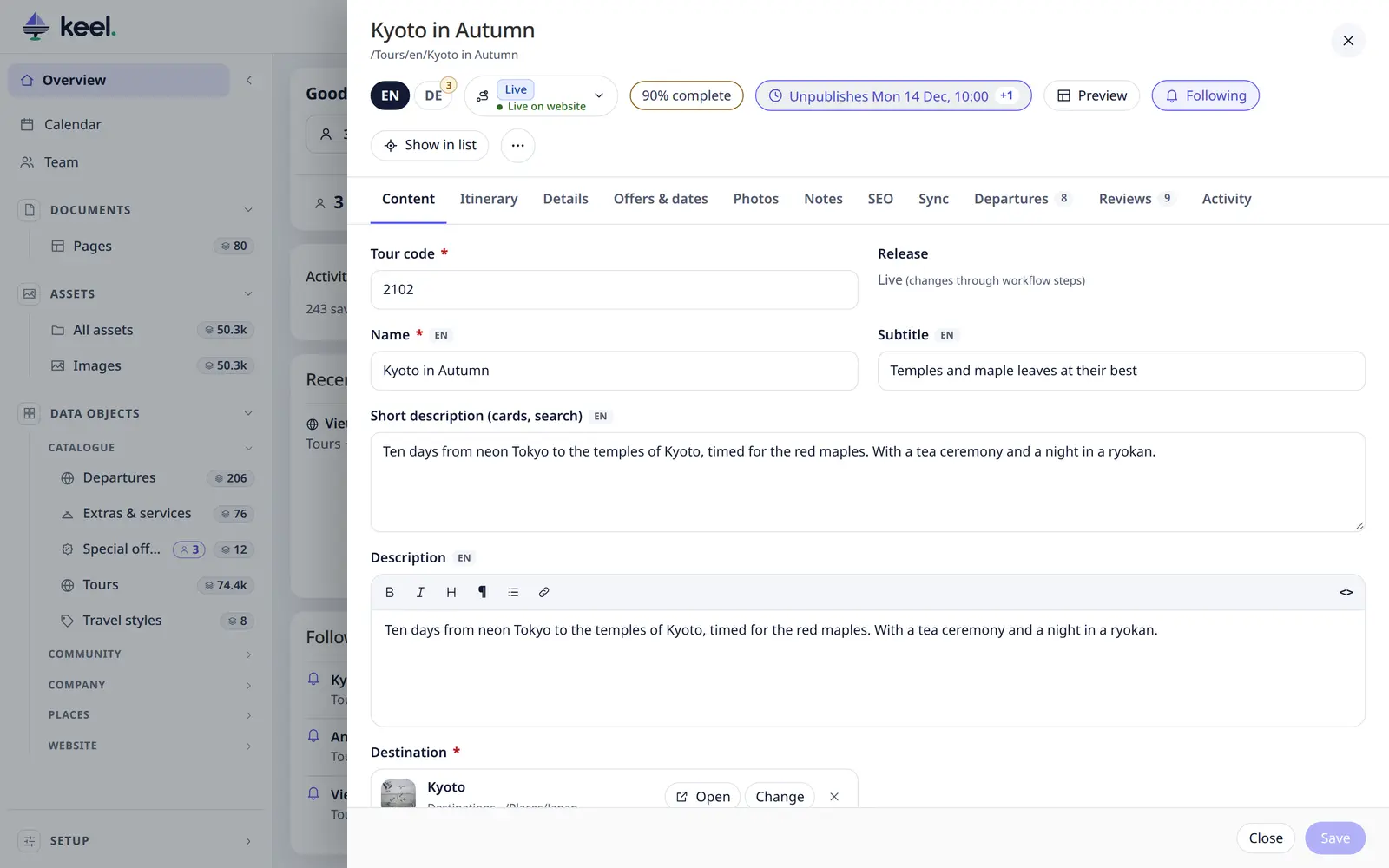
The header
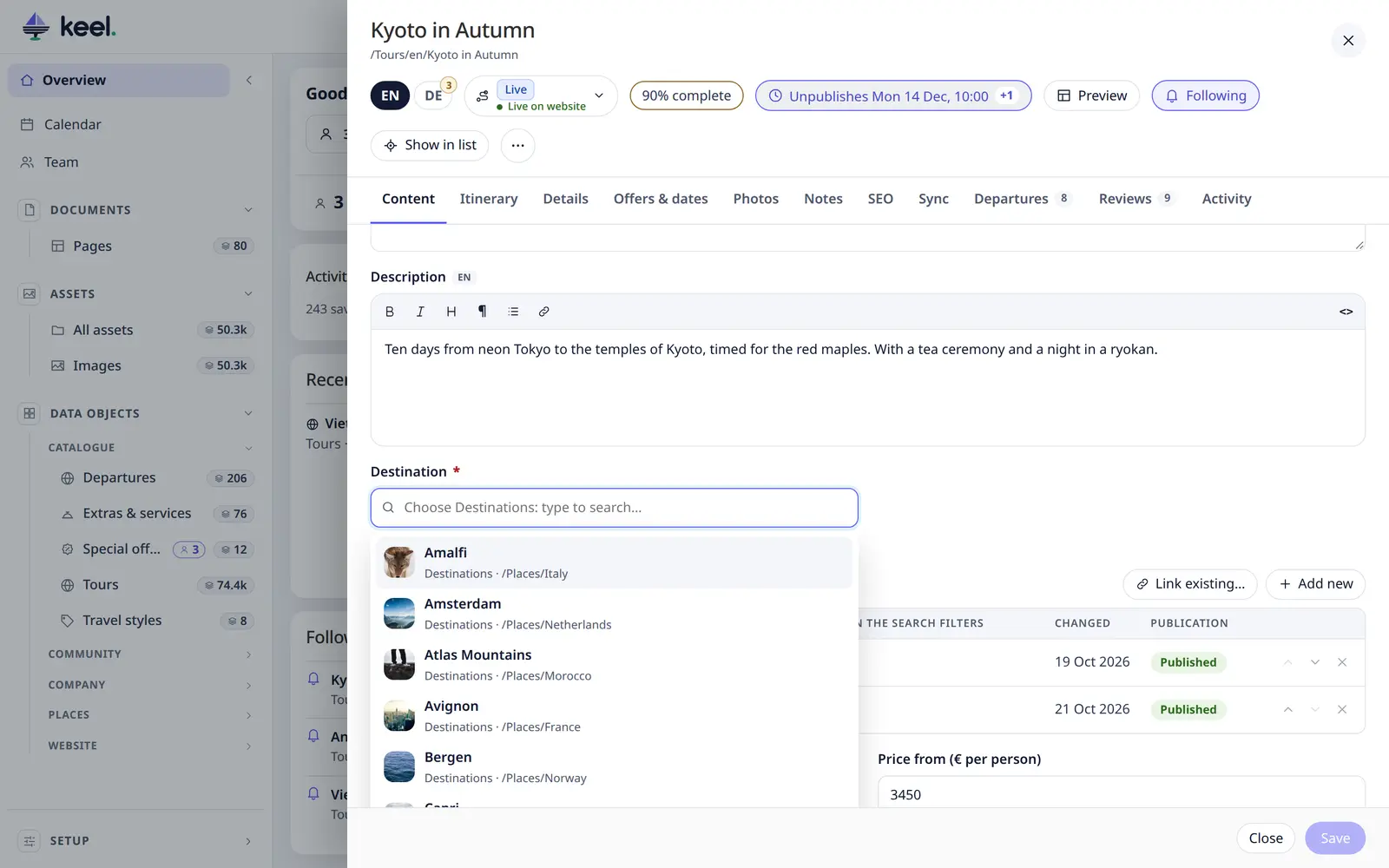
The header has two rows.
First row: the item's full title and where it is in Pimcore, and ✕ to close. A • after the title means unsaved changes.
Second row, from left to right:
| Assigned to | Who works on the item – see Assignments. On lists with assignments. |
| HR · EN · … | The language you edit. A small number on a language shows how many fields are not translated yet. |
| Workflow place | On an item in a Pimcore workflow, the one status: the place on the button, and under it Live on website or Not on website (with (not saved) until you save a change). Click it for the workflow steps; the On the website switch at the top of its panel publishes or unpublishes on Save. |
| 78% complete | How complete the item is, and what is missing – see Completeness. Once a rule is on. |
| Published | On items without a workflow: the switch publishes or unpublishes the item when you save. |
| Planned change | Only when something is planned, e.g. Unpublishes Thu 24 Dec, 07:00 – see Scheduled publishing. |
| Preview | The item's page with your unsaved changes – see Live preview. |
| Follow / Following | Be told when someone else changes this item – see Notifications & following. Pimcore Studio. |
| Show in list (target icon) | Keel's list opens at the item and the row lights up – so you always see where it sits. Pages have Show in tree (the Pages tree), files Show in folder. |
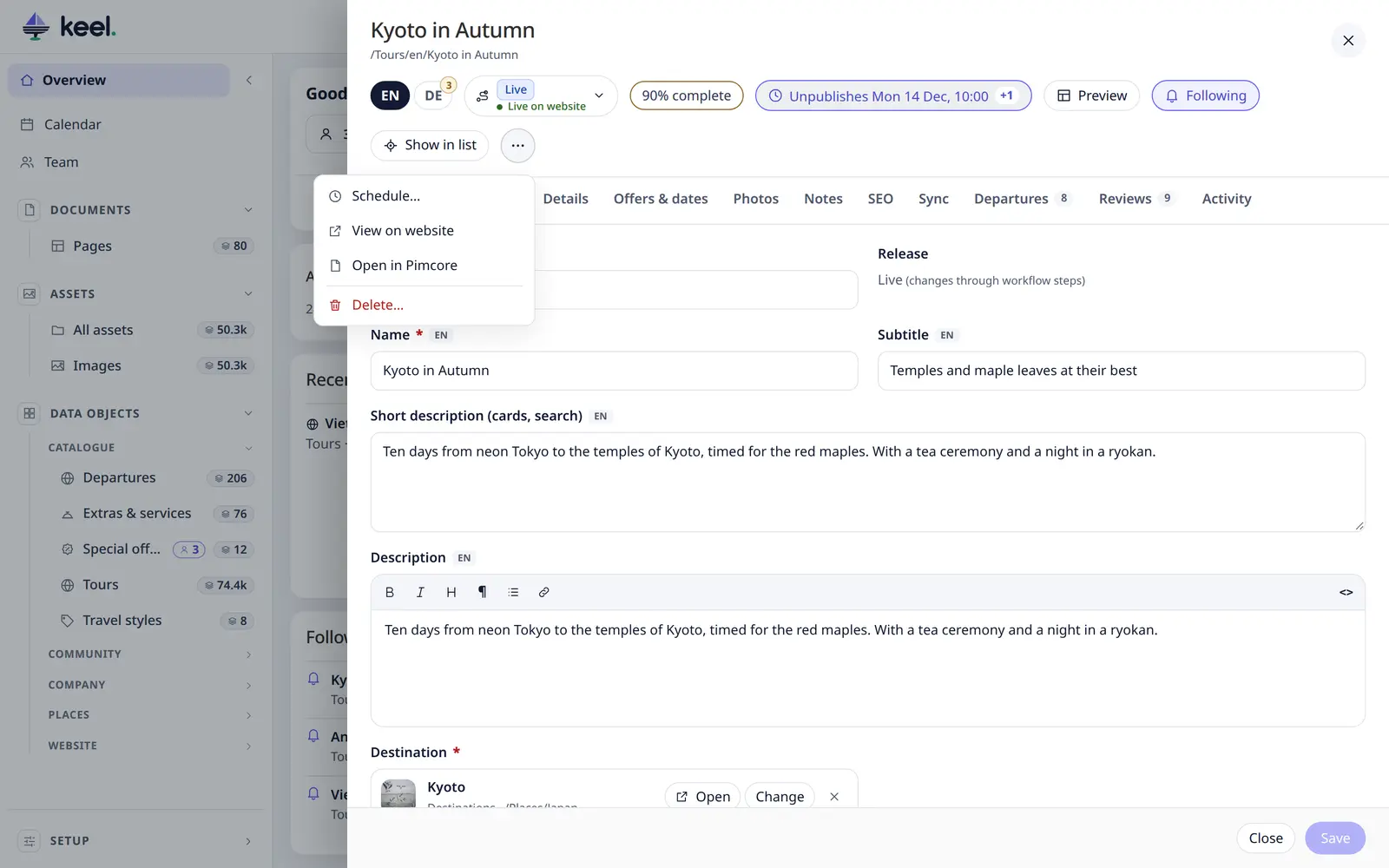
| ⋯ | Schedule… (publish or unpublish at a set time), View on website (the published page), Open in Pimcore (Pimcore's own editor) and Delete…. |
Tabs
The tabs follow the class layout in Pimcore. After them come:
- related lists – items that link to this one (for example Enquiries on a property), with a count,
- Activity – the last tab, in two parts: Steps and notes (assignments, status changes, notes and workflow steps; see Assignments & activity) and Saved versions (every save, with before and after – see History & undo). An item without activity has a History tab with the saved versions only.
The tabs stay on one row. When there are more than fit, the row scrolls: arrows and a soft fade at the edges show that there are more tabs on that side.
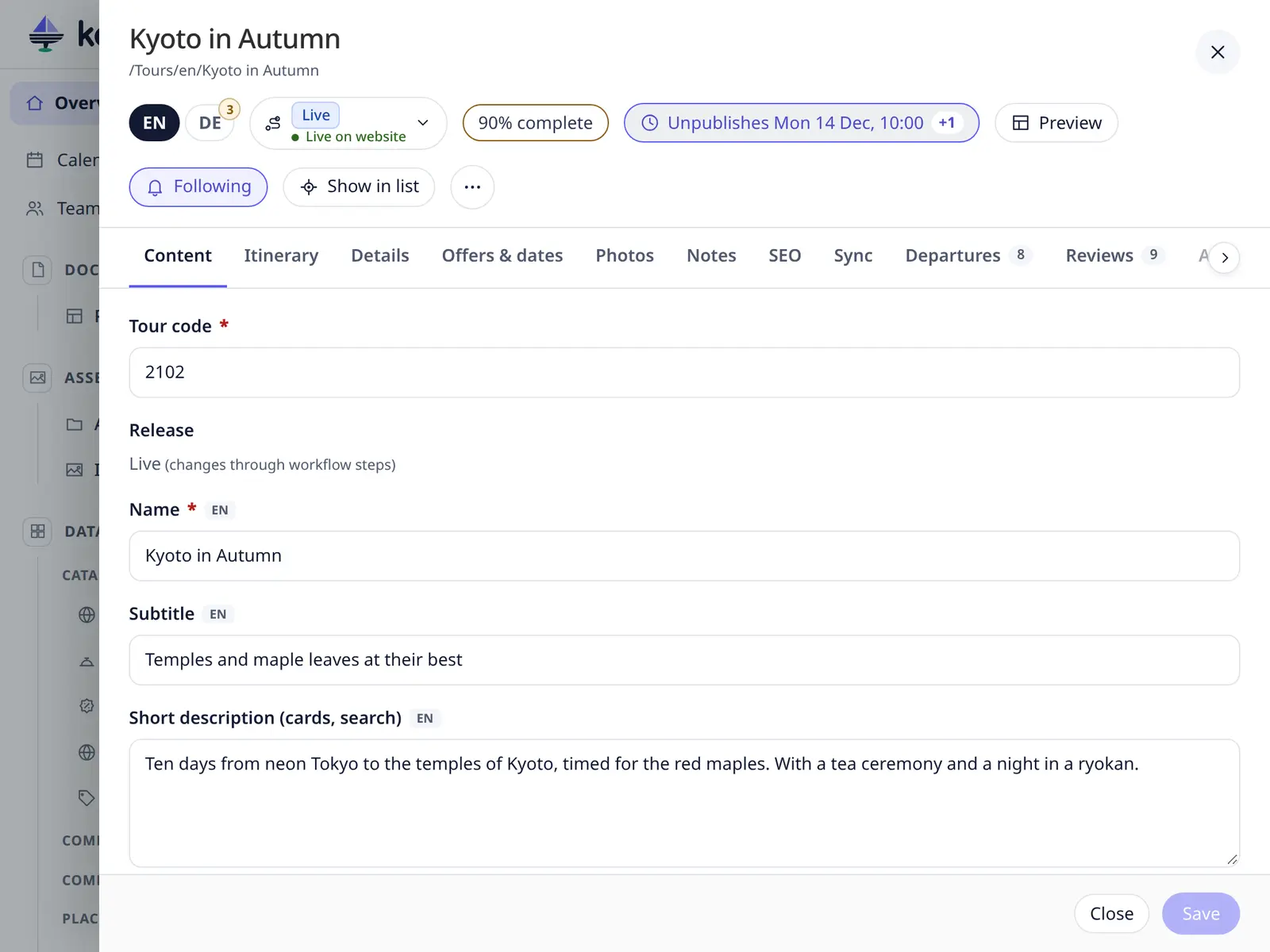
Keel remembers the last tab you used for each kind of item.
Fields
| Field | How it works |
|---|---|
| Text, long text | Type. In another language, the first language's text shows greyed out as a hint – see Not translated yet. |
| Rich text | Bold, italic, heading, paragraph, list and link; the <> button shows the HTML source. Text pasted from Word, Google Docs or a web page keeps its headings, bold, italic, underline, lists, links, tables and images; fonts, colours and other styling are dropped. Ctrl Shift V (⌘ Shift V on a Mac) pastes plain text. |
| Choice, country | A dropdown. |
| Several choices | Chips. |
| Yes/no, number | As you would expect. |
| Date, date and time | Shown in your interface language (24. 12. 2026., 24.12.2026, 24 Dec 2026). Type it or pick it in the calendar – see Dates. |
| Link | Text, address (https://… or /page) and New tab. |
| Colour | Colour picker with Clear. |
| Linked item | The chosen item shows in the field – its picture, name, kind and folder – with Open, Change and ×. Change opens the picker: type to search, each choice with its picture, kind and folder; Esc closes it without changing anything. × removes the link (Keel asks first – the item itself stays). |
| Linked items | A table of the linked items with their main details – see Linked items as a table. |
| Image | Drop an image, Upload, or pick From library. Low resolution warns about images under 1200 px wide. |
| Gallery | Drop photos; drag to change the order; ★ makes a photo the main image and moves it to the first place (Ctrl+Z takes back both). |
| Repeating groups, blocks | Add, duplicate, move and remove entries; Expand all / Collapse all. |

Fields Keel cannot edit show their value with (edit in Pimcore) – see Limits.
Not translated yet
In a language other than the default, a field that has text in the default language but is empty in this one is outlined in soft amber, with Not translated yet · EN: … and the default-language text under it, until you type something. The number on a language button counts these fields, and each tab shows how many of them it holds.
"Already used" warning
Some fields must be unique, such as an SKU, an EAN or a code. When an admin has marked such a field (Data model → Adjust fields → No duplicates), Keel checks it shortly after you stop typing. If another item has the same value, the field says Already used by … and names up to five items, with "and more" when there are more. Click a name to open that item.
This is a warning only: you can still save. Items you may not open are counted, not named. Fields that Pimcore itself keeps unique are checked too; Pimcore refuses to save those with a value that is taken.
Bricks and attributes
Object bricks and classification store attributes are edited in their tab, with search and pages for large stores. See Bricks and attributes.
Dates
Date fields (also Publish on / Unpublish on in Schedule…, a date in Set field… on many items and Shown from on a page's scheduled blocks) show the date the way your interface language writes it, plus 08:30 when the field has a time (24 hours).
- Type the date in the usual ways for your language, day first: 24. 12. 2026., 24.12.2026, 24/12/26, 24-12-2026, 24.12. (this year), 24 Dec 2026, 24. prosinca 2026., 24. Dezember 2026, or 2026-12-24. A time goes after it: 24.12.2026 8:30, … u 8:30, … um 8:30 Uhr, … at 8pm. When you leave the field it is written the field's way again. Text that is not a date stays in the field with a red note (Enter a date like …) and the field keeps its last date until you fix it; a date outside the allowed range (e.g. a schedule time in the past) is noted too.
- Pick it with the calendar button (or Alt ↓ in the field): ‹ › change the month, the month name opens a month / year view. Today is ringed, the chosen day filled; days that are not allowed are struck through. With a time, set hours and minutes below the calendar (↑ ↓: 1 hour / 5 minutes, any minute can be typed) and press Done. Today and Clear are at the bottom.
- Keyboard: ← → ↑ ↓ move by day and week, Home / End to the start / end of the week, Page Up / Page Down a month (with Shift a year), Enter picks, Esc closes the calendar only.
- On a phone the calendar opens as a sheet at the bottom of the screen.
The image library
From library opens the project's images by folder. Search all folders by file or folder name, tick images and Add to gallery. Images you upload in the editor go to the project's upload folder (images only, up to 25 MB).
Linked items in big lists
When there are more items than the project's limit (500 unless set otherwise), a linked-item field offers the newest 20 straight away, and typing two or more letters searches all items, however many there are.
Linked items as a table
A field that links several items – a tour's Special offers, Extras and Departures, say – shows them as a small table: the columns that item's list shows (for departures the start date, price and publication; for offers the type, discount and Book until; images as thumbnails), in the field's order.
- Click a row (or press Enter on it) to open the item on top; ← Back returns here.
- ✕ removes the link – the item itself stays. Delete on a focused row does the same.
- ↑ / ↓, dragging a row, or Alt ↑ / Alt ↓ on a focused row change the order (the website uses it).
- Link existing… opens the search box: type to find items (all of them, however many) and pick one; Done or Esc closes it.
- Add new opens an empty item of that kind; once you create it, it is linked here. It only shows when you may create such items.
Like any other change, linking, unlinking and reordering are kept only when you Save; Cancel or Esc → Discard leaves the item as it was, and Ctrl Z undoes them.
The first 20 items show; Show all lists the rest. An item you are not allowed to see shows as #1234 – no access – it stays linked, and you can still remove or move it. Without the right to change the item (or when a workflow locks it) the table shows without its buttons; Used on … fields of the other side use the same table, read-only. On a phone, or when the form is narrow, each row shows its details below the name.
An admin can switch a field back to chips (names only) in Data model → Adjust fields.
Related lists
A related list shows the items that link to this one. Add creates a new one that already links here; Link existing… links items that exist already; the ✕ on a row removes only the link – the item stays.
Save, close, delete
- Save – or Ctrl S. New items show Create.
- Without the publish right – saving an item that is already published does not change the live item. Keel stores your changes as a version and says "Saved as a version – publishing needs the publish right." Someone with the right can publish that version later. To publish or unpublish with the switch you need the publish or unpublish right.
- A field that a Pimcore workflow controls (its marking field) is read-only in the form. It changes through workflow steps, which you run from the workflow button in the header.
- The footer holds, from left to right: a hint or the last message, Close (Cancel while there are unsaved changes) and Save. Items, pages and files have the same footer.
- Close – the footer button, the ✕ at the top right, or Esc. With unsaved changes, Keel asks Discard changes?: Keep editing or Discard.
- The first time you open an editor, the hint reminds you of the keys (Ctrl S saves · Ctrl Z undoes · Esc closes). After that it is under ? → Keyboard shortcuts.
- Delete… – in the header's ⋯ menu; Keel asks first. The item goes to Pimcore's recycle bin and can be restored there.
Working together
- If someone else saves the item while you have it open, Keel does not overwrite their work: it tells you "Someone saved this item in the meantime" and asks you to reload.
- A note at the top shows who else is editing the item right now – in Keel or in Pimcore – and since when.